 Ideas for a smarter digital life.
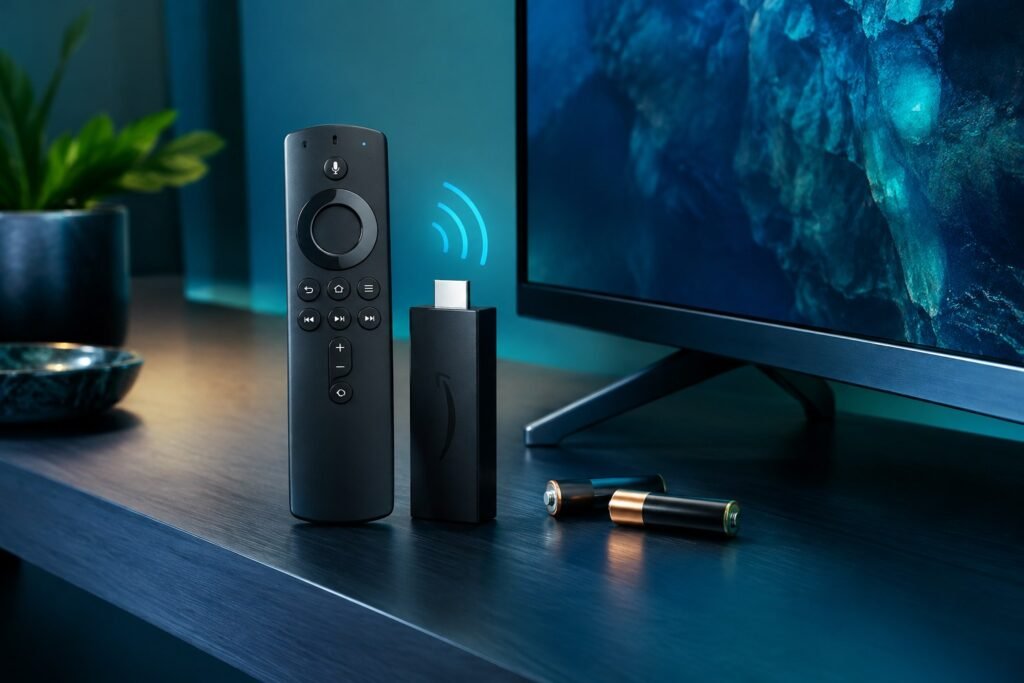
Quick answer: If your Firestick remote is not working, install fresh alkaline batteries, move within 10 feet (3 m) of the Fire TV device, restart the Fire TV, and hold Home for about 10 seconds to try pairing again. If it still fails, follow the remote-specific reset instructions below. You can temporarily control a connected Fire TV with the official mobile app.
Whether the issue is a Fire TV remote that stopped responding, a Firestick remote not pairing, or volume buttons that no longer work, the correct fix depends on the symptom. Try these troubleshooting steps in order rather than repeatedly resetting your entire streaming device.
What Real Fire TV Owners Report—and What Amazon Confirms
When researching “firestick remote not working” on Google Search, we also reviewed public user discussions. In a March 2026 owner report, the remote would not pair and the phone app could not discover the Fire TV because it was not connected to Wi-Fi. These reports help explain real-world scenarios, but they are not a replacement for Amazon’s official pairing instructions or model-specific reset procedures.
Our method: The numbered solutions below come from Amazon’s support guidance, with any user-reported experience identified as anecdotal. We did not physically test these fixes on every Fire TV remote. If your buttons are damaged or the remote is incompatible, no software reset can guarantee a repair.
Why Is My Firestick Remote Not Working?
- Weak or poorly seated batteries: The remote may light up but fail to pair reliably.
- Lost Bluetooth pairing: The remote no longer communicates with the Fire TV.
- Fire TV itself is frozen: The remote can be fine while the streaming device is unresponsive.
- Interference or range: Distance and nearby wireless equipment can affect pairing.
- Volume/control settings: TV power and volume may depend on Equipment Control settings, not just remote pairing.
- Remote damage or incompatibility: Liquid damage or an incompatible replacement remote will not be fixed by software steps.
1. Replace the Firestick Remote Batteries
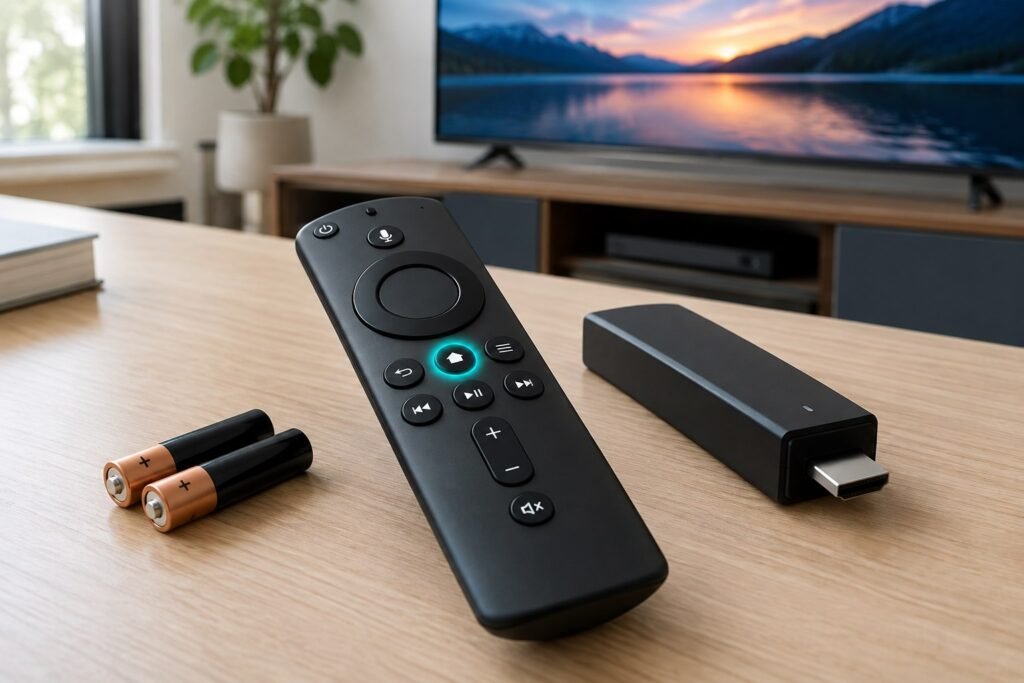
Remove the old batteries, check their orientation and the battery contacts, and install a new matching pair of alkaline batteries of the size required by your model. Amazon recommends AAA alkaline batteries for many Fire TV remotes. Do not assume batteries are good simply because a button briefly lights up. If the Firestick remote is not working with new batteries, move on to pairing and reset steps.
2. Restart Your Fire TV Stick Without a Working Remote
Disconnect your Fire TV Stick or Fire TV device from its power supply, wait around 60 seconds, then reconnect it. Make sure the power source is stable; a weak USB port can cause a separate power problem. If you use a Fire TV smart television instead of a Stick, use its relevant restart method.
3. How to Pair a Firestick Remote
- Turn on the TV and select the correct HDMI input for the Fire TV.
- Stand within approximately 10 feet (3 m) of the streaming device.
- Insert fresh batteries in the remote.
- Press and hold Home for approximately 10 seconds or until the pairing prompt appears.
- Follow any on-screen instructions and test the navigation buttons.
Some remotes pair automatically when their batteries are inserted. If yours does not, remove the batteries, wait about 30 seconds, and repeat. Amazon says the device can store up to seven paired controllers; older pairings may have to be removed if that limit is reached.
4. How to Reset a Firestick Remote Correctly
Important: These steps apply to most Fire TV remotes, not every model. Amazon documents different reset sequences for the Basic Edition Remote and the first-generation Alexa Voice Remote. Identify your model before using a shortcut.
- Unplug the Fire TV device from power and disconnect it from HDMI, then wait 60 seconds.
- Press and hold the Left direction, Menu, and Back buttons together for 12 seconds.
- Release all buttons and wait five seconds.
- Remove the remote batteries.
- Reconnect the Fire TV and wait for the remote-detection message.
- Reinsert the batteries and press Home.
- If the remote does not reconnect, hold Home for about 10 seconds.
For model-specific alternatives, use Amazon’s official Fire TV remote reset guide. A remote reset is not the same as a Fire TV factory reset; the latter can erase device settings and should not be your first step.
5. Firestick Remote Blinking Orange, Blue, Red or White
On compatible remotes, Amazon offers a troubleshooting mode. Activate it by holding Rewind and Right for three seconds, then pressing Menu; press a remote button to read the LED response. Not every remote has this LED or supports the diagnostic mode.
| Indicator in troubleshooting mode | Amazon’s interpretation | Next step |
|---|---|---|
| Slow red blink | Low battery | Replace batteries |
| Fast red blink | Remote problem | Reset the remote |
| Orange | Not paired | Restart Fire TV and hold Home to pair |
| White | Fire TV device may be off | Check device power and restart it |
| Blue | Remote diagnostic detects no issue | Restart the Fire TV device |
The meaning of a blinking light outside troubleshooting mode may differ. Do not rely on LED color alone without identifying your remote and the mode it is in.
6. Use the Firestick Remote App on Your Phone
If your physical controller has stopped responding, the official Amazon Fire TV mobile app can act as a remote on supported devices. Install the app on your iPhone or Android phone, connect the phone and Fire TV to the same local network, select the Fire TV device in the app, and complete the on-screen connection process.
Limitation: If the Fire TV is not connected to a network the phone can reach, the app may not discover it. The mobile app also does not always provide the same volume/power controls on every TV and Fire TV model.
7. How to Connect Firestick to Wi-Fi Without a Remote
First try the Fire TV app if your Fire TV is already on the same Wi-Fi network as your phone. Once connected, navigate to the Fire TV network settings to change the connection. If the Fire TV has never connected to that network, the app may not work; you may need a compatible physical replacement remote or another supported control method for your specific Fire TV model. Avoid assuming an unfamiliar Wi-Fi hotspot trick will always work.
For general connectivity troubleshooting after you regain access, see ThinkQuarry’s Wi-Fi and internet speed guide and home Wi-Fi security checklist.
8. Firestick Remote Volume Not Working but Navigation Works
If directional navigation works but the TV volume, mute, or power buttons do not, the remote may be paired correctly. On a Fire TV Stick, go to Settings → Equipment Control → Manage Equipment → TV, verify the TV brand, and follow the setup prompts if it is incorrect. The exact options vary across Fire TV devices, remotes, and connected speakers.
This is a different problem from a completely unresponsive remote. Do not factory-reset the streaming device just because volume control is broken.
9. Reduce Interference and Check the HDMI Setup
Move closer to the Fire TV, remove unnecessary nearby wireless obstacles, and ensure the Fire TV Stick is firmly connected to the HDMI port. If the device is crammed behind a television, an appropriate HDMI extender can make access easier and sometimes improve positioning. Test one change at a time so you know what helped.
10. Check for a Frozen Fire TV or Software Issue
Once you have temporary control using a paired remote or the Fire TV app, check for pending Fire TV updates through its Settings menu. If the device stays unresponsive even after a restart, troubleshoot the device and power supply as well as the remote. Avoid immediately performing a factory reset, which can require setting up apps and accounts again.
11. Pair a Firestick Replacement Remote
Not every Amazon remote works with every Fire TV model. Check compatibility before ordering a replacement remote. If another working controller is available, go to Settings → Controllers & Bluetooth Devices → Amazon Fire TV Remotes → Add New Remote and follow the prompts. Without an old remote, Amazon suggests restarting the Fire TV and attempting automatic pairing with batteries installed in the new compatible remote, or holding Home for ten seconds.
12. Decide Whether the Firestick Remote Needs Replacement
Replacement is reasonable after fresh batteries, a correct model-specific reset, a successful Fire TV restart, and a pairing attempt all fail—especially if buttons are physically damaged or the remote has been exposed to liquid. Compare the price of an official compatible replacement with the age and condition of the streaming device. Do not buy based only on the term ‘Firestick replacement remote’ without checking the exact model.
Frequently Asked Questions
1. Why is my Firestick remote not working with new batteries?
New batteries do not solve lost Bluetooth pairing, a frozen Fire TV, a damaged remote, or an incompatible controller. Restart the Fire TV and hold Home for about 10 seconds to reconnect.
2. How do I reset a Firestick remote?
For most remotes, unplug the Fire TV, hold Left + Menu + Back for 12 seconds, remove the batteries, reconnect the Fire TV, reinsert batteries, and press Home. Check model-specific variations first.
3. How do I pair my Firestick remote without the old remote?
Restart the Fire TV, insert batteries in a compatible replacement remote, and allow automatic pairing or hold Home for about 10 seconds. You can also use the Fire TV mobile app if connected.
4. What does an orange blinking Firestick remote mean?
In Amazon’s supported troubleshooting mode, orange indicates a pairing problem. Restart the Fire TV and attempt pairing again. Other LED patterns can have different meanings.
5. Can I use my phone as a Firestick remote?
Yes, on compatible devices through Amazon’s official Fire TV app, usually when the phone and Fire TV are accessible on the same local network.
6. Why do my Fire TV remote volume buttons not work?
The TV or speaker configuration may be wrong. Check Settings → Equipment Control → Manage Equipment → TV and confirm the TV brand and device compatibility.
7. Should I factory-reset Fire TV if the remote stops working?
No. Try batteries, a power restart, pairing, and a remote reset first. Factory resetting the Fire TV can erase configuration and should be a later, deliberate option.
Final Troubleshooting Order
Start with batteries, then power-cycle the Fire TV, re-pair using Home, and reset the physical remote according to its model. Use the mobile app as a temporary workaround if your Fire TV is reachable on your network. If only volume is broken, fix Equipment Control rather than treating it like a pairing failure.
Official Sources and Method
Checked November 12, 2026. Instructions are based on Amazon’s support documentation, and are not presented as tests on every Fire TV model: Pair Your Fire TV Remote, Reset Your Fire TV Remote, Troubleshoot Your Fire TV Remote, and Fix Volume, Power or Mute Buttons.