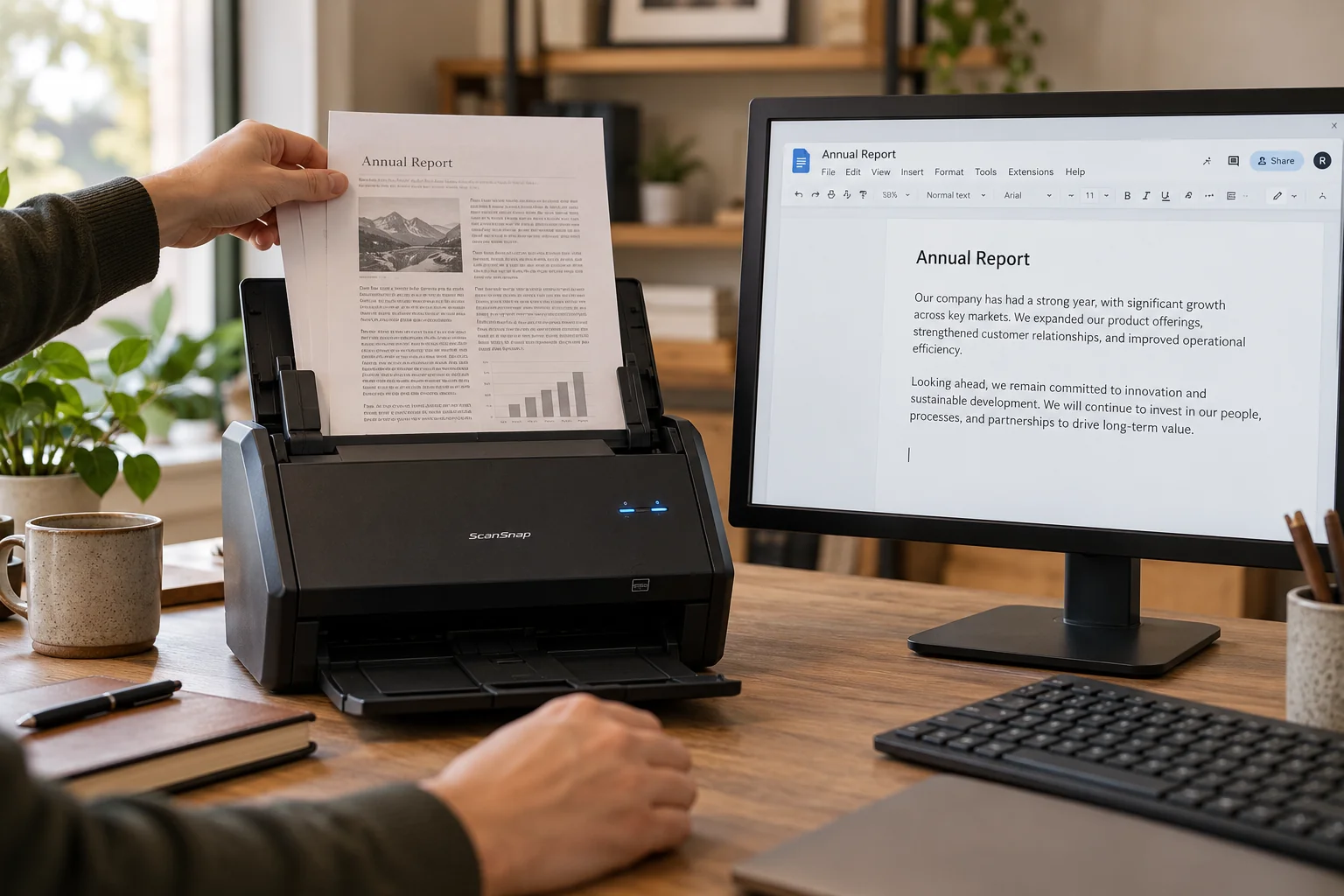
Quick answer: Upload the scanned PDF to Google Drive on a computer, right-click it, and choose Open with → Google Docs. Drive can recognize text in the scanned pages. Review the resulting document against the original because recognition and layout may be imperfect, especially for tables and columns.
A scanned PDF often contains pictures of words rather than editable characters. Optical character recognition, or OCR, attempts to turn those visible shapes into text. Getting text out and preserving the exact page design are different goals; decide which one matters before choosing a workflow.
First check whether you actually need OCR
Open the PDF and try to select a sentence. Copy it into a plain-text editor. If the words paste correctly, the file already has usable text, and OCR may be unnecessary. If you only select a page image or paste nothing, recognition is a reasonable next step.
Some PDFs contain a hidden text layer with poor recognition. In that case, a copy test can return garbled words even though selection works. Compare what you pasted with the visible sentence before assuming the document is already usable.
Prepare the scan
Google recommends clear, upright images with good contrast and text large enough to recognize. Its help page recommends files of 2 MB or smaller and notes that complex formatting may not transfer. Treat that as preparation guidance rather than a promise that every file will convert perfectly.
Before uploading a client document, confirm that storing it in the chosen Google account is permitted. If the document must stay on the device, use an approved local OCR workflow instead.
Convert a small sample first
- Keep the original PDF unchanged.
- Upload a representative sample to the intended Drive folder.
- Right-click the uploaded file and choose Open with → Google Docs.
- Review the extracted text in the resulting document.
- Compare one normal paragraph and the most difficult section with the original.
- If the sample is usable, continue with the remaining material in manageable sections.
Choose a sample that includes the document’s actual difficulty: a table, small print, an angled page or two columns. A perfect cover page does not establish that the body will recognize correctly.
Use a structured review sheet
| Check | Example problem | Review action |
|---|---|---|
| Characters | O read as 0 | Compare identifiers individually |
| Reading order | Two columns mixed together | Rebuild the paragraph sequence |
| Numbers | Decimal point missing | Verify amounts against the scan |
| Completeness | Last page omitted | Check every expected section |
For ordinary reference notes, a spelling pass may be enough. For addresses, dates, amounts and account references, review character by character. OCR errors often look like valid data, which makes them harder to spot than an obvious blank line.
Do not expect a table to become a clean spreadsheet
Imagine a scan with the columns Item, Quantity and Price. OCR may return three lines of text with unclear relationships. Pasting those lines into Sheets does not establish which price belongs to which item.
Build an explicit row-by-row table and compare it with the scan. Count the rows and reconcile the total where a total exists. Keep a link to the original source for each extracted section if several people will review it.
If recognition is poor
Try a clearer scan rather than repeatedly converting the same blurry image. Flatten a curled page, improve the lighting, rotate it upright and capture the full text area. If only one section is difficult, isolate that section for a focused correction.
Avoid compressing a document so aggressively that small text becomes unreadable before OCR. Reducing file size and improving recognition can pull in opposite directions. Choose the smallest file that still preserves the characters you need.
Common questions
Will this preserve the original PDF layout?
Not reliably. This workflow is best treated as text extraction, followed by editing and checking, rather than exact page reconstruction.
Is OCR output verified information?
No. It is a proposed transcription. Check important fields against the original before using them in a report or a data import.
Should I delete the scanned source after conversion?
Keep it while the extracted text is being reviewed. The original is the reference needed to resolve recognition errors.
For a better source image, see scanning multiple pages into one PDF on Android. For a few visible lines on Windows, try PowerToys Text Extractor.
Sources and further reading
Prepared by ThinkQuarry. Documentation checked 3 October 2026. Menu labels may vary by version. Featured image: original AI-generated photographic concept created for ThinkQuarry. This editorial visual is not a product screenshot.