Quick answer: In desktop Word for Windows, save a delivery copy, then open File → Info → Check for Issues → Inspect Document. Review the inspection results and remove the categories you intend to exclude. Save, reopen and inspect the exact file you plan to send. Keep the original because some removed information cannot be restored.
A document can look finished while still containing comments, revision history or author properties. Those details may be useful during collaboration and inappropriate in a final external copy. Decide what the recipient needs before stripping information.
Make two copies with distinct purposes
Keep a working master for editing and a delivery copy for sharing. A filename such as project-report_delivery.docx makes the distinction clearer than two files both called final. Store the delivery copy in a folder where you can identify it again during attachment selection.
Do not run a broad removal process on the only copy of a collaborative document. Comments and revision context may still be needed to resolve editorial decisions. Removing them is a delivery choice, not an automatic sign that the document is better.
Resolve visible collaboration material
- Read comments and decide which issues still need action.
- Review tracked changes and accept or reject them deliberately.
- Confirm the final wording after those decisions.
- Check headers, footers and visible text for private details.
- Save the delivery copy before inspecting hidden information.
Hiding markup is not the same as removing it. A clean-looking view can still contain changes that another reader can display. Make the editorial decisions first, then inspect the copy.
Run Document Inspector on Windows
Use File → Info → Check for Issues → Inspect Document. Select the categories relevant to the delivery and run the inspection. Review each result before choosing Remove All for a category. The tool can identify several kinds of hidden or personal information, but the exact categories depend on the file and Word version.
Microsoft recommends working on a copy and warns that some removal cannot be undone. Its platform guidance also states that Word for Mac does not have the same Document Inspector. Do not assume a Windows menu path applies to Mac or the browser-based editor.
| Information | Question before removal | Delivery check |
|---|---|---|
| Author properties | Should the recipient see creator details? | Inspect the saved properties |
| Comments | Are any review decisions unresolved? | Check the comments pane |
| Tracked changes | Should the recipient review revisions? | Display markup and confirm the intended state |
| Visible client details | Does this recipient need them? | Read the body, header and footer manually |
Inspect the exact delivery format
If the recipient needs DOCX, reopen that DOCX and check it. If you export a PDF, inspect the PDF separately. Removing information from one file does not establish that another export has the same properties or contains the intended content.
Check page layout as well. Accepting revisions or deleting comments can coincide with content changes, so open the first page, a representative middle page and the ending. Verify that the report still contains the complete conclusion or required sign-off.
Do not confuse metadata cleanup with redaction
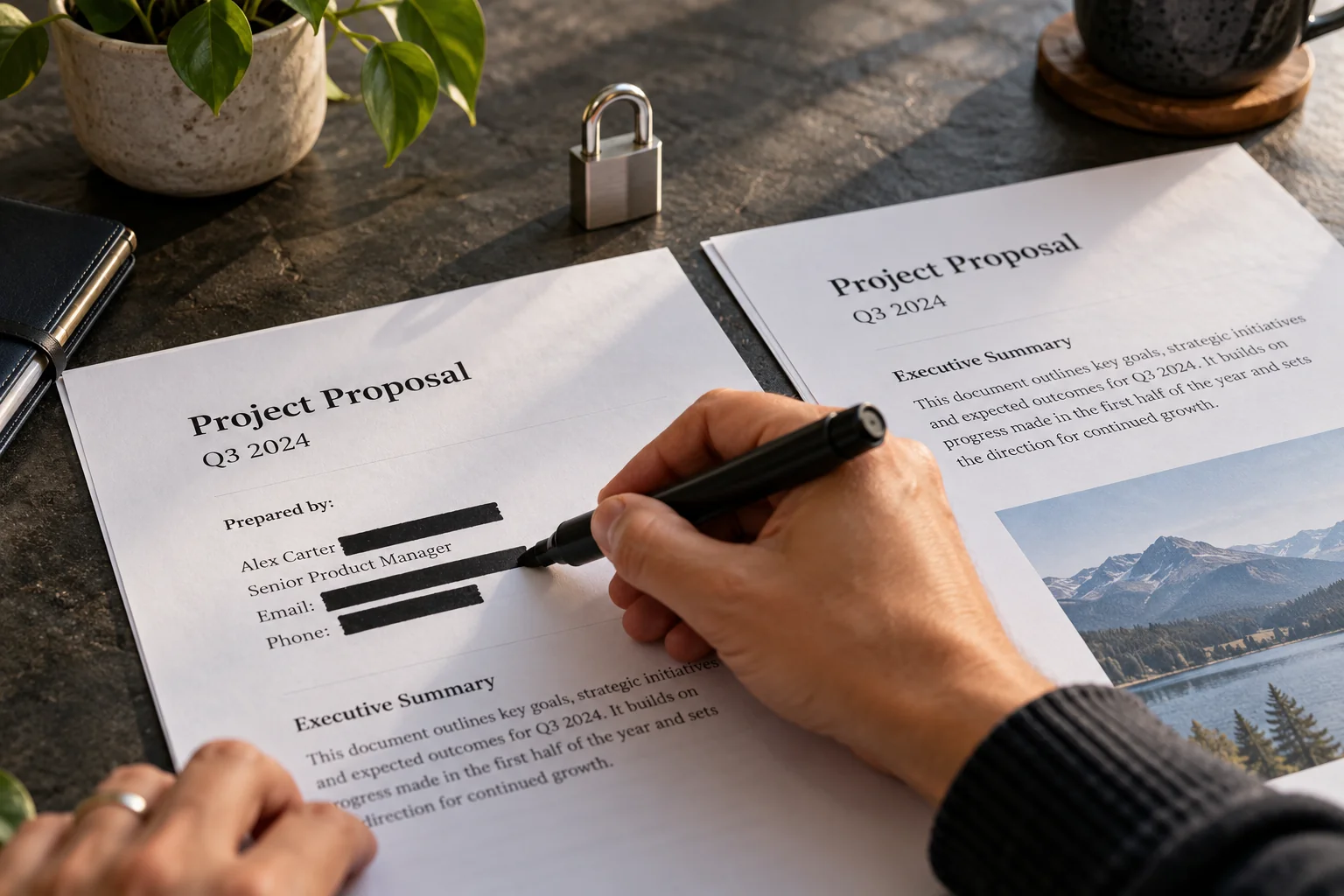
Document Inspector is not a general method for hiding confidential text in the visible body. A black shape placed over text is also not a dependable redaction process. If material must be excluded, use an appropriate removal or redaction workflow for the final format and verify the output.
For an ordinary external summary, it may be simpler to create a clean delivery document containing only the approved material. Keep a record of what was approved so cleanup does not accidentally remove context the recipient needs.
Use a final attachment check
Attach the delivery copy, then confirm its filename and size in the message. Open the attachment preview or the local file again if necessary. Many sharing mistakes happen after a correct cleanup because the sender selects the working master instead of the prepared copy.
A repeatable checklist is: correct content, resolved revisions, appropriate properties, correct delivery format, correct recipient and correct attachment. Assign one person to this final check when several people helped prepare the document.
Common questions
Will deleting the author’s name remove every private detail?
No. Comments, visible text and other properties need their own review. Use inspection as one part of the delivery check.
Can I keep tracked changes for a review recipient?
Yes, when that is the purpose of the delivery. Tell the recipient that they are receiving a review copy rather than a clean final version.
Does PDF export automatically remove all metadata?
Do not assume that. Review the exported file’s content and properties separately.
Complete the handoff with our client-sharing checklist and clipboard cleanup guidance.
Sources and further reading
Prepared by ThinkQuarry. Documentation checked 3 October 2026. Menu labels may vary by version. Featured image: original AI-generated photographic concept created for ThinkQuarry. This editorial visual is not a product screenshot.