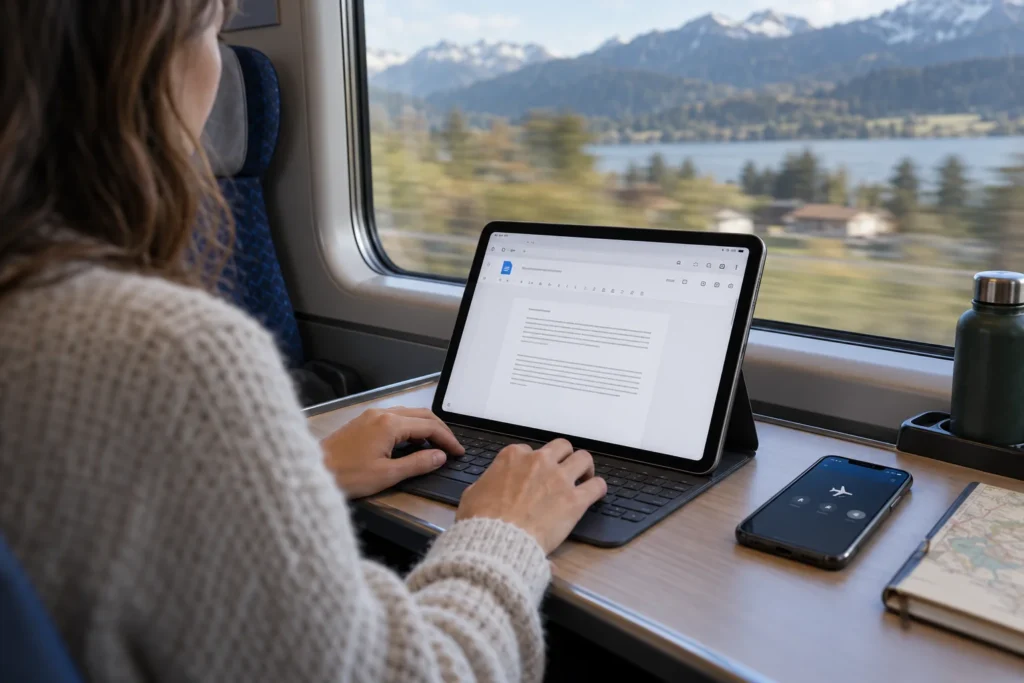
Quick answer: If Google Docs offline is not working, reconnect first and prepare offline access in the correct browser profile. Google supports this workflow in Chrome and Edge with the Google Docs Offline extension, outside private browsing. Make the needed document available offline, wait for readiness, and test it before relying on it during an outage.
Practical example & checks
A two-minute offline readiness test
- While online, open a non-sensitive practice Google Doc in the intended supported browser profile. Follow the document’s current offline setup controls.
- Add a marker such as “Offline test A”. Wait for the save status.
- Disconnect the network and reopen the prepared document in that same profile. Add “Offline test B”.
- Reconnect. Wait for syncing, then reopen the document and confirm both markers.
| Result | Meaning |
|---|---|
| Document will not open offline | Preparation or profile/browser setup needs attention |
| Document opens but new marker does not sync | Resolve save/sync state before relying on the workflow |
| Both markers persist after reconnecting | This document passed the small readiness test |
This tests one file and profile. It does not establish that every Drive file is available offline. Before clearing browser data, preserve unsynced edits and confirm their state; a destructive reset can remove the copy you are trying to recover.
Original ThinkQuarry teaching material added 19 October 2026. Hypothetical examples are not product-test results.
Turning on a setting while already disconnected cannot fetch a document that was never prepared on that device. Offline work is a preparation workflow. The practical goal is to establish that the exact file you need can open and accept an edit without a connection.
Check four prerequisites
- Device: Use the computer where you plan to work. Preparing another computer does not prove this one is ready.
- Profile: Use the browser profile and Google account that have access to the document.
- Browser: Use a supported browser with the offline extension enabled, outside incognito or private mode.
- Account policy: A managed work or school account may have administrator restrictions.
Keep an ordinary test document separate from important work. It should contain no confidential information and be easy to recognize, such as “Offline readiness test.” That gives you a low-risk place to diagnose settings and synchronization.
Prepare while connected
- Open Google Drive in the intended browser profile.
- Open Settings and enable Offline.
- Confirm that the Google Docs Offline extension is available and enabled.
- Find the document you need and use its Make available offline option where available.
- Open the document and check its document-status indicator.
- Wait until the file reports that it is ready for offline use.
Google’s help page explains how to check document status and troubleshoot browser setup. Treat that status as evidence for the particular file, rather than assuming every file in your account has already been cached.
Run a two-minute readiness test
Leave the test document open, temporarily disconnect the computer from the internet, and type a distinctive sentence: “Offline test completed on this device.” Open the prepared working document as well and check that you can read the section you need.
Reconnect and wait for the document’s saved or synchronized status. Then confirm that the test sentence is present. This checks both offline editing and the return to online work. Run the test before travel or a planned interruption, rather than during a deadline.
| Failure | Likely area to investigate | Next check |
|---|---|---|
| Offline setting is unavailable | Browser or account policy | Check supported browser and administrator guidance |
| One prepared file works, another fails | File readiness | Reconnect and prepare the missing file |
| Wrong account warning | Profile or offline account conflict | Confirm the browser profile and intended Google account |
| Offline edit does not appear online | Synchronization | Keep the profile open and check document status |
Avoid a destructive reset too early
Do not clear site data while you still have unsynchronized edits. First reconnect and confirm that important changes are saved. Only then consider Google’s targeted troubleshooting steps. Removing cached data before synchronization can undermine the very work you are trying to recover.
If you use several accounts, keep work and personal tasks in separate browser profiles. A clearly named profile reduces the chance of preparing a document under one account and attempting to reopen it under another.
Prepare a practical backup for a deadline
For a presentation or client meeting, an exported reference copy can provide a second way to read the material. Label it with the export date and explain that it is a snapshot. Do not make competing edits to both copies unless you have a plan to reconcile them.
A useful preparation checklist includes the current document, any essential reference files, the expected offline window and who will review changes after reconnection. Links to uncached websites may still fail while the document itself works.
Common questions
Does offline Docs mean all of Drive is available?
No. Verify each required file and distinguish browser-based Google Docs offline work from local-file synchronization through a desktop application.
Why did it work on my laptop but not my other computer?
Readiness depends on the device, profile and file preparation. Repeat the preparation and test on the second computer.
Can I work offline in a private window?
Google’s supported workflow excludes private browsing. Use a regular profile on a device where offline caching is appropriate.
Keep your project materials easy to locate with a simple digital file system.
Sources and further reading
Prepared by ThinkQuarry. Documentation checked 3 October 2026. Menu labels may vary by version. Featured image: original AI-generated photographic concept created for ThinkQuarry. This editorial visual is not a product screenshot.