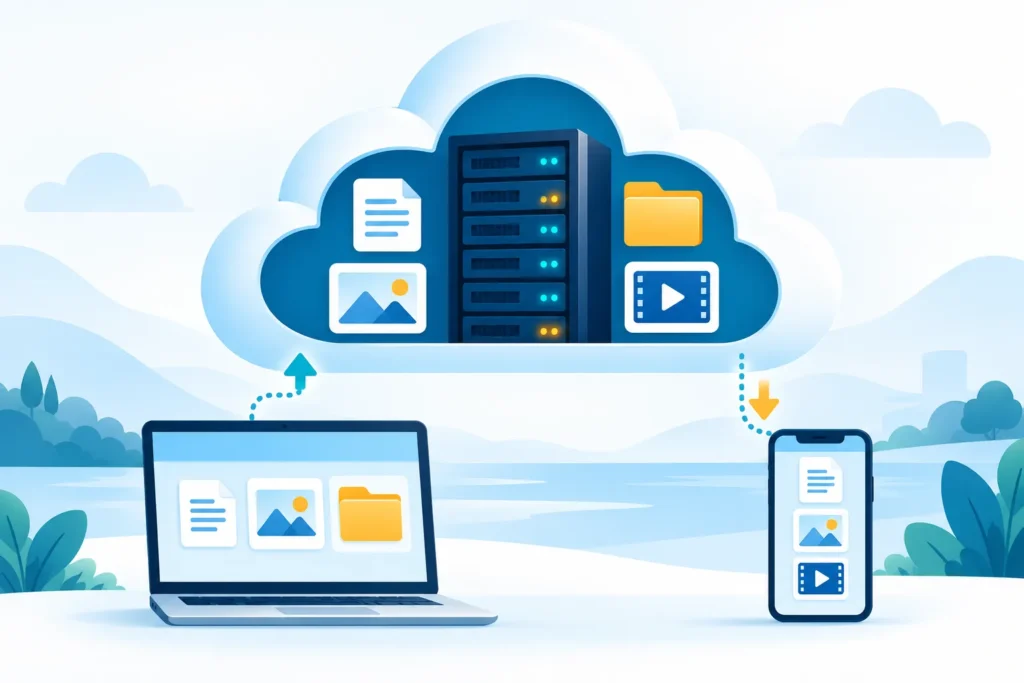
Cloud storage is a way to save digital files on remote servers and access them through an internet connection. Instead of keeping the only copy of a document, photo, or video on your device, you store it with a service that manages the storage infrastructure.
For example, you can upload a document from your laptop to Google Drive, then open it on your phone after signing into the same account. The file is available through the service rather than being tied to one computer.
However, storing a file online does not automatically make it public, keep it available offline, or protect it from every kind of loss. Understanding those differences helps you use cloud storage more confidently.
What Is the Cloud?
“The cloud” refers to computing resources accessed over a network, usually the internet. Behind the name are physical computers, storage devices, and data centers.
Your files do not float somewhere in the sky. They are stored on hardware operated by a provider or, in some business environments, by the organization itself.
Think of the difference between keeping a document in your desk drawer and placing it in a managed storage facility. The location changes, but you still need a way to identify the document and control who can retrieve it.
The analogy has limits: digital files can be copied, synchronized, and shared without physically moving the original.
How Does Cloud Storage Work?
For an everyday file-storage app, the process usually follows these steps:
- You select a file. This might be a photograph, spreadsheet, PDF, or video.
- The service uploads it. Your device sends the file through a network connection.
- The provider stores the data. Its systems maintain the stored file and associated information.
- You access it through your account. A browser, desktop application, or mobile app lets you find and open it.
- You choose whether to share or sync it. Available controls depend on the service and your plan.
Uploading and synchronizing take time. Seeing a filename in a folder does not always mean its contents have finished uploading.
Before shutting down a computer or switching devices, check the application’s upload or sync status.
A practical example
Suppose you create a client proposal on your laptop and save it in a synchronized folder.
Once synchronization finishes, you can open the proposal from another supported device. You can also give the client access through a sharing link or invitation.
If you later change the document, those changes may synchronize too. That is useful for keeping work current, but it also explains why sync should not be confused with an independent backup.
Cloud Storage Examples You May Already Use
Common consumer-facing examples include Google Drive, Microsoft OneDrive, Dropbox, and iCloud Drive.
These services help people keep files accessible across devices, although their applications, sharing controls, and storage arrangements differ.
| Everyday task | How cloud storage helps |
|---|---|
| Opening study notes on another device | Makes uploaded notes accessible through your account |
| Delivering a project to a client | Provides access without attaching every file to an email |
| Working on shared documents | Keeps collaborators connected to shared material |
| Keeping files available after replacing a laptop | Allows access to files successfully stored in the account |
This is a list of examples, rather than a ranking. For a provider comparison, see our Google Drive vs OneDrive vs Dropbox guide.
Cloud Storage vs Cloud Computing: What Is the Difference?
Cloud computing is the broader category. It includes services for running applications, processing information, hosting databases, and storing data.
Cloud storage is one part of cloud computing.
Saving a video online is a storage task. Renting computing resources to process or convert that video is a computing task. A single application can use both.
For a beginner choosing somewhere to keep documents, the practical question is usually about file access and recovery—not how to manage a cloud server.
What Are the Types of Cloud Storage?
“Types” can describe different aspects of storage. Two common classifications answer different questions.
By how the data is organized
- Object storage: Stores data as objects with identifiers and metadata. It is commonly used for media, archives, and application data.
- File storage: Organizes information through files and folders in a shared filesystem.
- Block storage: Provides storage volumes used by systems such as virtual machines and databases.
A familiar folder interface in a consumer app does not necessarily reveal the provider’s underlying storage architecture.
By how the environment is deployed
- Public cloud: A provider offers infrastructure to multiple customers with access controls separating their resources.
- Private cloud: Cloud infrastructure is dedicated to one organization.
- Hybrid cloud: Connects private and public cloud environments.
“Public cloud” does not mean that everyone can read your files. Public accessibility depends on permissions and configuration.
Benefits of Cloud Storage
Access across devices
You can retrieve stored files from supported devices without carrying the original computer. You still need the correct account, permissions, and a working connection unless offline access is prepared.
Easier sharing
A shared file or folder can be more manageable than a chain of email attachments. Before sending a link, decide whether the recipient should view, comment, or edit.
For a practical handoff process, read our guide to sharing files with clients securely.
Less dependence on one device
A damaged laptop does not necessarily mean losing files already uploaded to your account. Files that never finished uploading remain a different matter.
Flexible capacity
Many services let you change storage plans as your needs grow. Check the actual quota and terms before moving a large collection.
Disadvantages of Cloud Storage
Cloud storage introduces tradeoffs as well as convenience.
Connection limits: Large uploads can take time, especially on a slow connection.
Ongoing costs: A growing photo or video collection may exceed a free allowance.
Account dependence: Losing access to an account can interrupt access to your files.
Sharing mistakes: An overly broad link or unnecessary edit permission can expose information.
Service interruptions: Outages and application problems can temporarily prevent access.
Recovery limits: Deleted files and older versions may only be recoverable under specific conditions or for a limited period.
These are reasons to plan your setup carefully, particularly when the files would be difficult to replace.
Cloud Storage vs Sync vs Backup
These terms are related, but their purposes differ.
| Term | Main purpose | What to remember |
|---|---|---|
| Cloud storage | Keep data on remote infrastructure | Storage alone does not define the recovery policy |
| Sync | Keep selected locations updated | Changes and deletions can propagate |
| Backup | Maintain recoverable copies | Protection depends on versions, retention, and restore capability |
Some products combine all three. Evaluate what the feature actually does instead of relying only on its name.
For example, deleting a file from a synchronized folder may also remove it from the cloud. A recycle bin or version history might help, but recovery depends on the service’s rules.
For important work, keep an additional independent copy and test that you can restore it.
Is Cloud Storage Safe?
Cloud storage can provide useful protections, but security depends on the provider, your account, and how you share information.
Start with these practical steps:
- Use a unique password or a supported passkey.
- Enable multifactor authentication where available.
- Keep account recovery information current.
- Give people only the access they need.
- Review shared links and remove access when a project ends.
- Keep devices and storage applications updated.
Encryption also needs context. Encryption during transfer or while stored does not automatically mean end-to-end encryption. Check who controls the keys and what the provider says about access to file contents.
For confidential client material, confirm that the service and account are appropriate before uploading.
Does Cloud Storage Work Offline?
Some cloud-storage applications let you download or mark selected files for offline access.
An online-only placeholder is different from a fully downloaded file. A filename can appear on your computer while the contents still need an internet connection.
Google Drive provides offline options, but the setup differs between its desktop application and browser-based documents. Prepare important files before disconnecting, then test that they open.
When you reconnect, supported applications can synchronize changes. Avoid editing the same file offline on multiple devices unless you understand how the app resolves conflicting versions.
How to Start Using Cloud Storage
Try a small, low-risk test before moving your main folders:
- Choose a service that supports your devices.
- Secure the account and check recovery options.
- Upload a non-sensitive test file.
- Wait for upload completion.
- Open it on a second device.
- Test sharing with the intended permission.
- Check the service’s deletion and recovery instructions.
- Keep an independent copy of important files.
This reveals more about whether a service fits your work than comparing storage capacity alone.
Frequently Asked Questions
Is Google Cloud the same as Google Drive?
No. Google Drive is a file-storage and collaboration service. Google Cloud is a broader platform for infrastructure and application services. Its Cloud Storage product stores objects in containers called buckets and is separate from Google Drive.
Does cloud storage free up space on my laptop?
It can if your application supports online-only files. Keeping downloaded or mirrored copies still uses local storage. Use the application’s space-management controls rather than deleting files without checking the sync behavior.
Can other people see my cloud files?
Access depends on the service and permissions. Uploading a file does not automatically make it public, but a public sharing link or incorrect folder permission can expose it.
What happens if I delete a cloud file?
It may move to a trash or recycle bin, and the deletion may synchronize to connected devices. Recovery periods vary. Check the service’s policy before assuming the file can be restored.
Do I need both cloud and local storage?
They can serve complementary roles. Cloud storage helps with access and sharing; a separate local copy can support offline work and recovery. Keep important copies independent enough that one mistaken deletion does not remove them all.