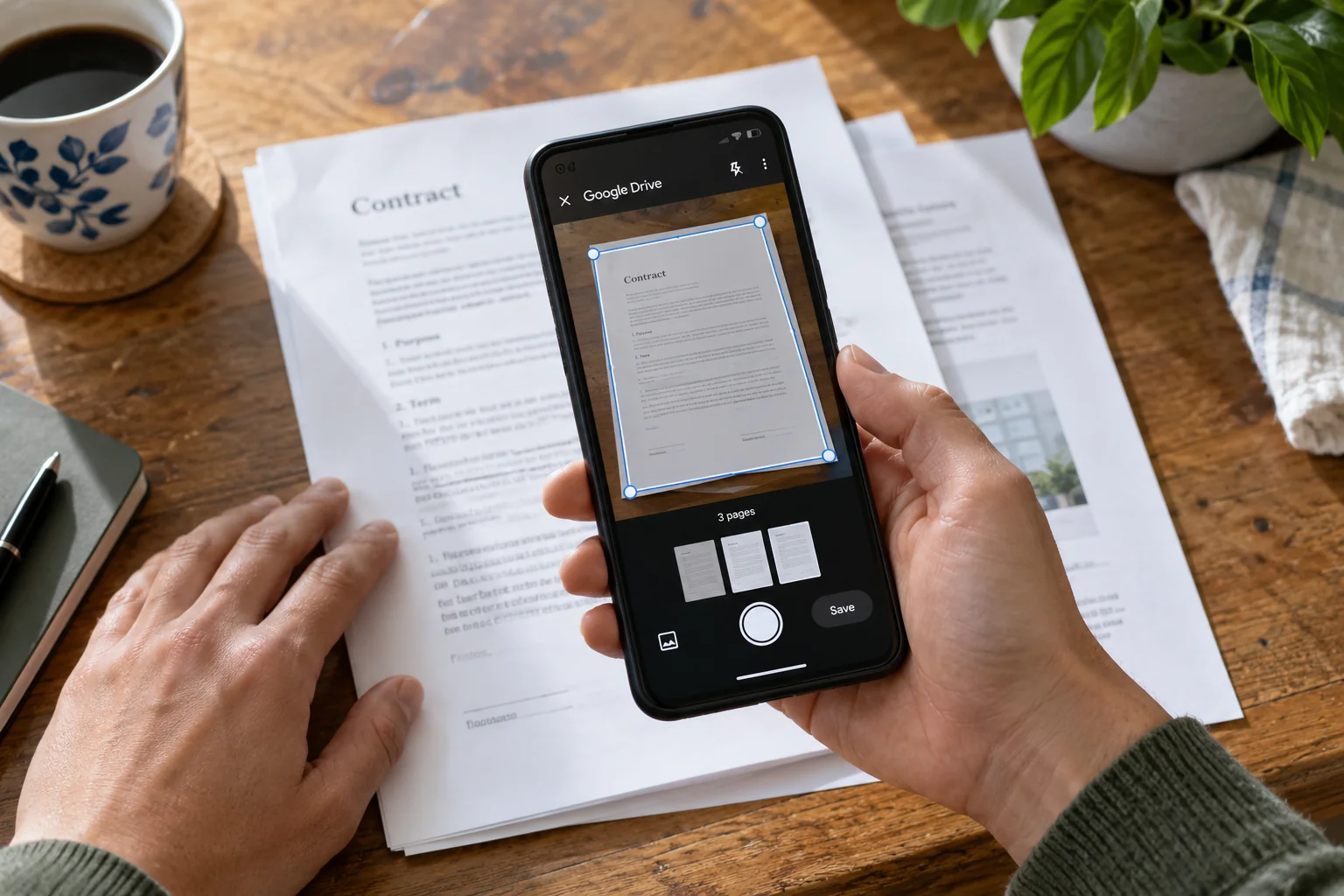
Quick answer: Open Google Drive on Android, tap the camera scanning control, capture the first page and use Add to capture the rest. Review the pages, tap Done, choose PDF, name the file and select its destination folder before saving. Check the completed PDF before sending it.
This is useful when a client needs one file containing a short form, receipt set or signed document. The scanner can combine the pages, but you still need to confirm that the result is complete, readable and in the intended account.
Prepare the paper and account
Arrange the pages in their intended order. Remove unrelated pages from the desk so they do not enter the frame. Place the document on a contrasting background and use even light. Avoid a strong reflection across text or a shadow from the phone.
Check the Drive account before starting. A personal phone can hold several accounts, and the wrong destination is easy to overlook when you focus on the scan. If your organization has a document-handling policy, use the permitted account and folder.
Capture and combine the pages
- Open the installed Google Drive app.
- Tap its Camera control and point the phone at the first page.
- Capture the page using the available manual or automatic option.
- Check the crop boundary, rotation and readability.
- Tap Add to capture the next page and repeat for the remaining pages.
- Review the set, retaking any page that is incomplete or blurry.
- Tap Done, choose the PDF format, enter a clear filename and select Location.
- Save and open the resulting document.
Google’s current Android guidance documents capture, crop and rotation, filters, adding pages and PDF or JPG output. Controls can differ slightly across app versions, so follow the labels on your device rather than relying on a remembered icon position.
Use a page-by-page quality check
| Check | What a good scan shows | Reason to retake |
|---|---|---|
| Edges | All required text and page corners | Clipped signature or reference number |
| Focus | Small print readable when enlarged | Blurred digits or dates |
| Lighting | Text visible across the page | Glare covering a line |
| Sequence | Expected first, middle and final pages | Missing or repeated page |
For a three-page document, count the paper pages first and the PDF pages afterward. Check any printed page numbers too. A repeated second page can make a three-page PDF look complete even when the final page is missing.
Name the file for the recipient
A useful filename gives enough context without exposing unnecessary personal data. For example, 2026-10-03_project-intake_3-pages.pdf is easier to identify than scan_0047.pdf. If your workflow uses a project reference, include it consistently.
Avoid calling the file “final” until someone has checked it. A practical sequence is draft-scan, reviewed-scan and approved-delivery. You do not need many versions; you need names that make the status clear.
Share only after opening the saved PDF
Inspect the saved file rather than relying on the camera preview. Open the first and last pages, enlarge small text and confirm the page count. If the recipient needs a local attachment, verify the exported or downloaded PDF opens as well.
If you share a Drive link, review the audience and permissions. A readable PDF in the right folder does not automatically mean the intended recipient has access. Conversely, a broadly accessible link can expose a document to more people than intended.
What to do about a large scan
First remove unnecessary pages and retake poor images. If the file is still too large for your delivery channel, compress a PDF copy offline on Windows and compare the result. Keep the clearer original for your records when permitted. Do not reduce quality so far that the file passes a size limit but loses the text the recipient needs.
Common questions
Should I save as JPG or PDF?
Choose PDF when you want several pages presented as one document. JPG is an image output and suits a different delivery requirement.
Can I edit the words in the scan?
A scan captures the page. To obtain editable text, use an OCR workflow and verify the recognized words against the source.
Is a scan the same as an accepted original?
The recipient decides what format they require. Confirm whether they want a scan, an editable document or the physical original.
Next, see turning a scanned PDF into text and sharing documents with clients securely.
Sources and further reading
Prepared by ThinkQuarry. Documentation checked 3 October 2026. Menu labels may vary by version. Featured image: original AI-generated photographic concept created for ThinkQuarry. This editorial visual is not a product screenshot.