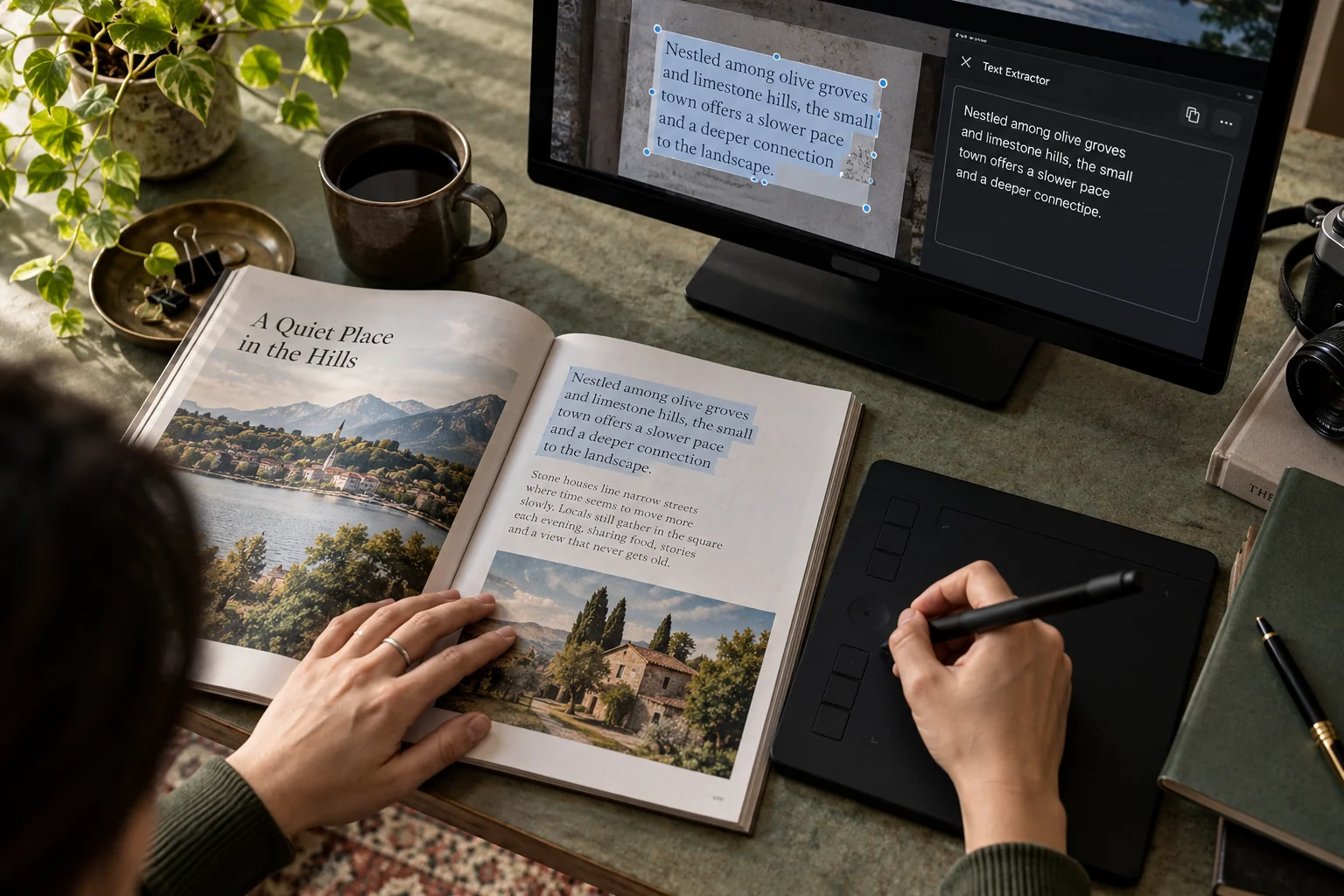
Quick answer: With PowerToys running and Text Extractor enabled, press Windows + Shift + T, drag over the visible text, then paste the result into a private note. The default shortcut can be changed in PowerToys settings. Review the output because optical character recognition can misread words, numbers and punctuation.
This is a convenient way to capture a few lines from an image, paused video or screenshot when ordinary text selection is unavailable. It is not a substitute for a full document-conversion workflow when you need every page, a table or exact layout.
Choose the smallest useful capture
Before using OCR, try normal selection and copying. If the source already contains selectable text, that avoids recognition errors. If it is genuinely an image, enlarge the text until the characters are clear and keep the target region free of tooltips or overlapping windows.
Capture one paragraph or one field at a time when accuracy matters. Selecting a whole screen can mix interface labels, neighboring columns and unrelated content into the output.
Set up and use Text Extractor
- Install PowerToys from an official Microsoft source if it is not already installed.
- Open PowerToys and confirm Text Extractor is enabled.
- Check the configured activation shortcut; Windows + Shift + T is the documented default.
- Bring the image or paused frame into view.
- Press the shortcut and drag a rectangle around the intended text.
- Paste the recognized text into a private review area.
- Compare it with the visible source before using it elsewhere.
Microsoft’s documentation explains that the recognized text goes to the clipboard, that the shortcut is configurable, and that OCR language support depends on the Windows configuration. It also recommends proofreading the output. For ordinary screenshots, its guidance points readers to Snipping Tool.
Use a character-level check for identifiers
| Possible confusion | Why it matters | Check |
|---|---|---|
| O and 0 | Can change an account reference | Compare each position with the source |
| l, I and 1 | Can alter a code or URL | Inspect the font and surrounding context |
| Missing decimal point | Can change a quantity | Check the whole number, not just the digits |
| Extra line break | Can split a field | Rebuild the field before importing |
For example, an OCR result of AB10O7 may look plausible even if the source says AB1007. A spellchecker will not settle that question. Keep the source visible and verify the actual characters.
When the shortcut does not respond
Confirm PowerToys is running, the module is enabled and the shortcut in settings matches what you pressed. Another application may be using the same shortcut. Try a nonconflicting combination in the module settings and retest on an ordinary desktop image.
If the overlay appears but recognition fails, check that the selected region actually contains legible text. If the language is unsuitable, follow the official language-pack guidance for your Windows setup. Avoid guessing commands or downloading language packages from an unknown site.
Keep tables and source context intact
A screenshot of three columns may yield text without reliable row relationships. If your goal is a spreadsheet, extract a small sample first, reconstruct explicit columns, and compare each row with the source. A successful capture does not prove that every number stayed attached to the correct label.
For reference notes, include where the text came from and which image or page you reviewed. That makes later corrections possible. Remove the source context only when it is unnecessary for the final document.
Common questions
Can this extract all pages of a PDF automatically?
This utility captures a selected visible region. For document-level extraction, use a dedicated OCR workflow suited to the file and its handling requirements.
Can I paste OCR output directly into a client email?
Review it first in a private note. That avoids sending a recognition error or accidentally including unrelated screen text.
Why is the result different from the image layout?
Recognition focuses on text. Columns, spacing and reading order may need manual reconstruction and checking.
For full scanned documents, see Google Drive PDF OCR. After handling private text, review your clipboard history and pinned entries.
Sources and further reading
Prepared by ThinkQuarry. Documentation checked 3 October 2026. Menu labels may vary by version. Featured image: original AI-generated photographic concept created for ThinkQuarry. This editorial visual is not a product screenshot.