Quick answer: In Gmail on a computer, test a search such as has:attachment filename:pdf subject:invoice. If it finds the right messages, open the search options, create a filter and apply an Invoices label. Start with labeling only; do not automatically archive or delete messages until you have checked what the rule includes and misses.
Practical example & checks
Build a label-first invoice filter and check false positives
has:attachment filename:pdf subject:invoiceRun the search before making a filter. Inspect messages it includes and invoices it misses. Create an Invoices label using Gmail’s filter controls; begin without delete or automatic archive actions.
| Practice message | Expected review |
|---|---|
| Subject Invoice 12, PDF attachment | Likely included |
| Subject Receipt, PDF attachment | May be missed because subject differs |
| Subject Invoice, no PDF attachment | Excluded by the attachment criteria |
| Subject Invoice, unrelated PDF | Can still be a false positive |
Acceptance check: the label should help you find relevant messages without silently discarding mail. A matching filename does not prove an attachment is genuine or safe. Refine the rule using observed examples and retain the original messages while evaluating it.
Original ThinkQuarry teaching material added 19 October 2026. Hypothetical examples are not product-test results.
An invoice filter is a filing aid. It does not confirm that an attachment is a genuine invoice, that a payment is due or that the sender is trustworthy. A good rule makes review easier without removing the human decision about the document.
Build the query in small steps
First search for filename:pdf to see how PDF attachments appear in your mailbox. Add subject:invoice to narrow the results. If a regular vendor uses another subject convention, test it separately rather than broadening the rule without checking.
| Query | Purpose | What it may miss |
|---|---|---|
| has:attachment filename:pdf subject:invoice | PDF attachments with invoice in the subject | Receipts, links and unusual subjects |
| from:billing@example.com filename:pdf | PDFs from one known address | Another sender used by that vendor |
| has:attachment filename:pdf {subject:invoice subject:receipt} | Invoice or receipt subjects with PDFs | Messages without those subject words |
The addresses here are illustrative. Replace them with a sender you have actually confirmed. Google’s operator documentation describes attachment, filename, sender and subject searches; test the combination against your own messages before saving it.
Create a label-first filter
- Run the query and inspect the matching messages.
- Open Show search options and review the criteria.
- Select Create filter.
- Choose Apply the label and select or create Invoices.
- Leave Delete it, automatic forwarding and broad spam exemptions unchecked.
- If offered, decide whether to apply the rule to existing matching conversations.
- Create the filter and inspect the label’s contents.
Google documents the search-to-filter workflow and explains that replies only match a filter when they satisfy its criteria. An invoice email and a later reply in the same conversation therefore should not be assumed to follow identical rules.
Review false positives and missed messages
Look for messages that matched but are not actionable invoices: a sample template, promotional attachment or an old reference document. Then inspect a small set of invoices you know should match. A rule is not ready merely because it found some relevant messages.
Keep a short review log for the first week. Note sender, subject, attachment type and whether the result was correct. If the same legitimate format is repeatedly missed, adjust the relevant condition. Avoid removing every condition just to make the result count larger.
Separate organization from action
A practical label set might include Invoices/Review, Invoices/Recorded and Invoices/Resolved. Move messages between these labels based on your actual process. A search rule can identify candidates, but it cannot infer that your records are complete or that a bill has been paid.
Similarly, automatically saving or forwarding attachments is a separate workflow with access and privacy implications. Do not add it just because you are already creating a label. Keep the first automation narrow enough to inspect.
When archiving becomes reasonable
After a review period, you might choose to skip the inbox for a highly predictable sender. Make sure someone still reviews the label and that important changes, disputes or account notices are not hidden by the same rule. Test the sender’s different message types before adding this step.
If your work depends on a timely response, leaving new messages in the inbox with an added label may be the better choice. Convenience should support the process, not make messages harder to notice.
Common questions
Will this download the attachments?
No. Applying a Gmail label organizes messages. Downloading or saving attachments requires another action.
Does filename:pdf prove the file is safe?
No. It is a search condition, not a security assessment. Review unexpected attachments and sender context normally.
Where do I change the rule later?
Open Gmail Settings → See all settings → Filters and blocked addresses, then edit the relevant filter and review its criteria.
When you export a document list, use our CSV import checks to keep fields aligned.
Sources and further reading
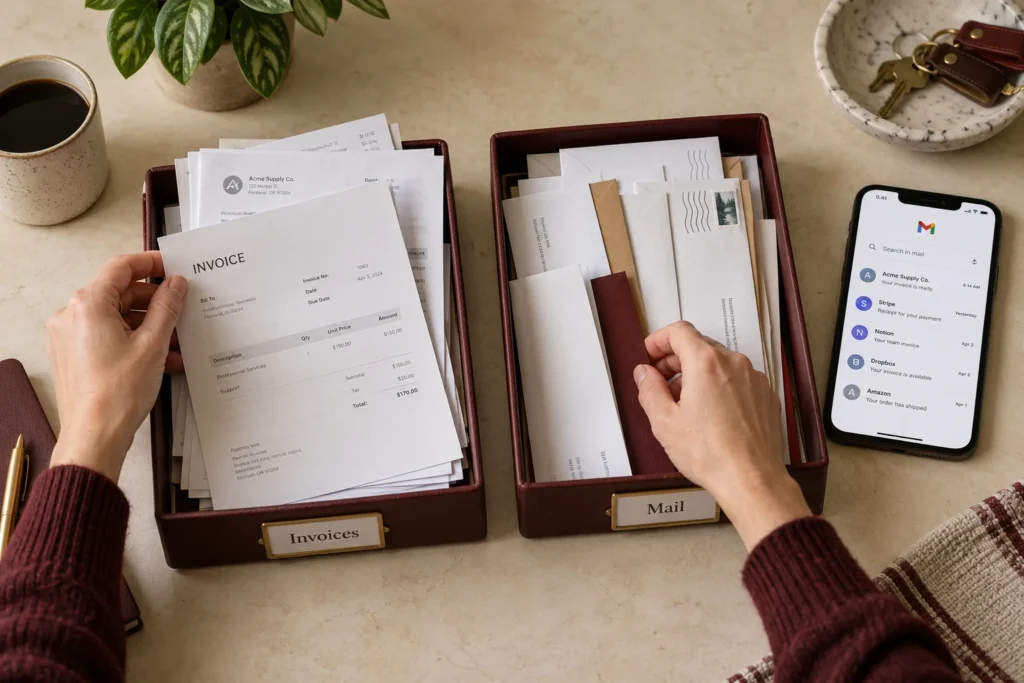
Prepared by ThinkQuarry. Documentation checked 3 October 2026. Menu labels may vary by version. Featured image: original AI-generated photographic concept created for ThinkQuarry. This editorial visual is not a product screenshot.