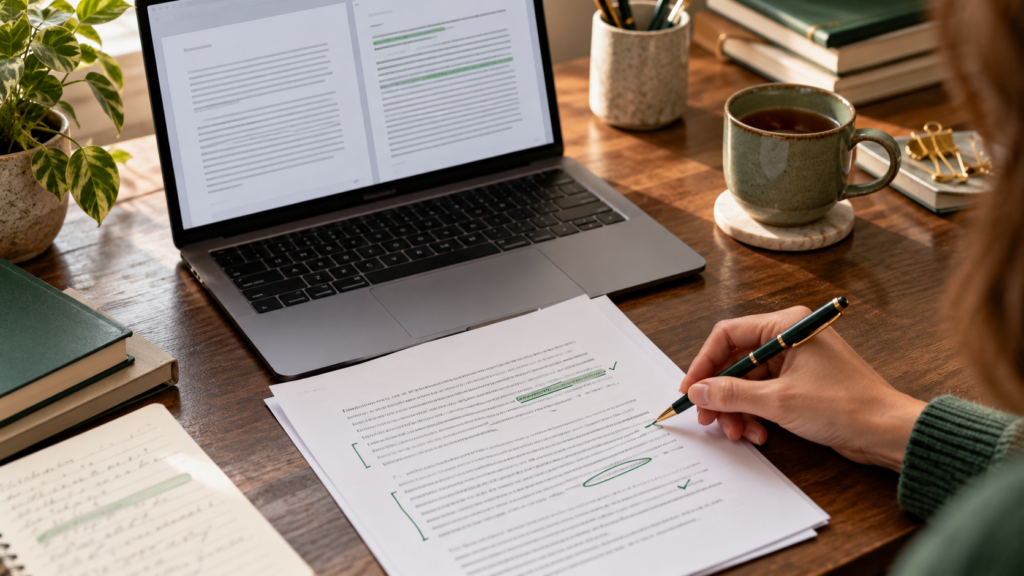
Learning how to use Microsoft Copilot in Word is easier when you begin with one real document: a project update, a proposal or a page of meeting notes. Give the assistant a clear assignment, inspect the result, and improve the parts that matter. You do not need to let it write an entire report in one attempt.
This guide explains a practical workflow for getting from rough notes to a useful draft. The sample prompts below are original examples you can adapt to your own work.
What you need before starting
Microsoft says Copilot in Word requires an eligible Microsoft 365 subscription and/or a Microsoft 365 Copilot license. Access can also depend on organization settings, your app version and the device you use. A free standalone Copilot account does not automatically unlock every feature inside Word. Check Microsoft’s current Word guidance if your controls differ.
Prepare a short set of notes before opening the assistant. Include the audience, the purpose of the document, facts that must appear, and anything that must remain uncertain. These notes are more useful than a vague instruction such as “write a professional report.”
How to use Microsoft Copilot in Word, step by step
- Open Word and sign in with the account that has eligible access.
- Create a document or open one you are allowed to edit.
- Locate the Copilot control. Its placement and available options vary across Word versions.
- Describe the document you want, including its audience, structure and length.
- Use an available reference-file option when your draft needs to follow an existing source.
- Generate the draft, review it and keep, revise or discard the result.
The important decision happens after generation. Read the draft as if a colleague submitted it for review. An organized paragraph can still contain an incorrect date, an unsupported promise or a conclusion that your notes never established.
Example: turn rough notes into a project update
Imagine a small design team has finished a homepage concept, still needs feedback on the mobile layout, and expects the next review on Thursday. A useful assignment would be:
Write a 250-word project update for a client using the notes below. Use three headings: Completed, Awaiting Feedback and Next Steps. Keep a calm, direct tone. Do not add deadlines or promises that are absent from the notes. Mark missing information as “To confirm.”
Paste your actual notes underneath. Then check whether every completed item is genuinely finished and whether Thursday is a confirmed review date. If the answer sounds too confident, ask for a revision that preserves uncertainty.
A good follow-up is specific: “The mobile layout is awaiting approval. Rewrite the second section so it does not imply that implementation has begun.” Changing one problem at a time makes review easier.
Rewrite a paragraph without losing its meaning
For existing text, select the section you want to improve and use the available rewrite or editing option. Define what should change and what should stay.
Shorten this paragraph by about one third. Keep the product names, dates and qualifications unchanged. Replace formal filler with plain English. Do not add new claims.
Compare the revision with the original. Pay particular attention to words such as “may,” “must,” “estimated” and “confirmed.” Removing one qualifier can change a document’s meaning even if the new version reads more smoothly.
Summarize a document with a useful purpose
Microsoft also documents document summarization in Word. The experience depends on your settings and license. When summary options are available, tell Copilot what the reader needs rather than simply requesting a shorter version.
Summarize this document for a manager who needs to make a decision. Separate confirmed findings, unresolved questions and proposed actions. Preserve important numbers and identify where the document does not provide enough evidence.
Return to the original paragraphs before using the summary in another document. A summary is useful for orientation; it should not replace checking the details behind a decision.
Three habits that improve your results
- Separate drafting from fact checking. First improve the structure, then verify names, dates, numbers and sources.
- Give one measurable constraint. A word range, a fixed list of headings or a specific audience is easier to evaluate than “make it better.”
- Keep a clean version. Save a copy before substantial edits so you can compare important changes.
For recurring documents, build a reusable instruction containing your preferred headings and tone. Update the facts for each new assignment. If you need help organizing the surrounding process, explore our AI productivity workflows guide.
If the Copilot button is missing
Check the signed-in account, your subscription and whether Word is current. Work or school accounts may require an administrator to enable access. Consult Microsoft’s support information before purchasing an additional plan; the issue may be account configuration rather than a missing feature.
Frequently asked questions
Can Copilot write an entire Word document?
It can help generate substantial drafts where supported. For a long report, work section by section and verify the evidence behind each section before combining them.
Does a polished result mean it is accurate?
No. Fluent writing is not proof that the facts, references or conclusions are correct. Review the content before sharing it.
What is the best first task to try?
Choose a short, low-stakes document you already understand. A project update from your own notes is a good starting point because you can judge every statement.
Your first exercise: draft one short update, correct one factual weakness and compare the final version with your original notes. That creates a repeatable process you can use again.
Continue your AI productivity workflow
This guide is part of our AI Productivity Tools & Workflows pillar guide. Use it to connect research, drafting and review into one repeatable process.