 Ideas for a smarter digital life.
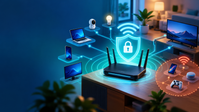
To secure home Wi-Fi, use WPA3 or suitable WPA2 settings, change default router credentials, keep firmware updated, review connected devices and separate guest access where appropriate. Check your router and device guidance before changing settings, and keep a record so you can restore access if needed.
Your home Wi-Fi connects more than a laptop and a phone. It may also connect your smart TV, security camera, printer, gaming console, and every guest who visits. That convenience comes with a responsibility: if your router is poorly configured, the devices behind it may be easier to reach or misuse.
The good news is that improving home WiFi security usually doesn’t require advanced networking knowledge. A few careful changes to your router settings can make a meaningful difference.
Quick answer: To secure home WiFi, use WPA3-Personal encryption when available, create separate strong passwords for your Wi-Fi and router administration, install firmware updates, turn off unnecessary features such as WPS and remote management, and keep guests and smart devices separated from your main network.
Why Is Home Wi-Fi Security Important?
Your router acts as the connection point between your devices and the wider internet. It also controls which devices can join your wireless network.
If someone gains unauthorized access, they may use your internet connection, attempt to reach shared devices, or take advantage of other weaknesses on the network. A compromised router can also interfere with how devices connect to websites.
Securing your Wi-Fi doesn’t make every online activity automatically safe. You still need secure accounts, updated devices, and sensible browsing habits. But it gives your entire home a stronger starting point.
1. How Do You Access Your Router’s Security Settings?
Before changing anything, identify your router’s manufacturer and model.
Most routers can be managed through a mobile app or a local administration page. If you’re using the web interface, connect to your own network and enter the router’s gateway address in your browser. Common addresses include 192.168.1.1 and 192.168.0.1, but yours may be different.
Use the address printed on your router, listed in your device’s network settings, or provided by your internet service provider.
Once you’re logged in, look for sections named Wireless, Wi-Fi Security, Administration, or System.
Take a photo or record of the current settings before changing them. If your provider manages the router, some settings may be locked. In that case, ask your provider rather than trying to bypass its controls.
2. Why Should You Change Both Router Passwords?
Your router normally has two different passwords, and they protect different things.
The Wi-Fi password controls who can join the wireless network. The administrator password protects the settings that control the router itself.
Changing only your Wi-Fi password leaves the administrative side vulnerable if it still uses default credentials.
Create unique passwords for both. For a home Wi-Fi passphrase, aim for at least 20 characters where supported. Avoid addresses, birthdays, router brands, and predictable phrases.
A password manager can help you store the administrator password securely.
Also change the default network name, known as the SSID, if it reveals personal details. A neutral name makes sense; it doesn’t need to be complicated.
How to Change the Wi-Fi Password on Your Router
Use your router’s admin page or your provider’s app to change the password that devices use to join your Wi-Fi network.
- Sign in to the router using its administrator credentials. If possible, connect by Ethernet so you can stay connected while the wireless settings update.
- Open Wi-Fi, Wireless, or Wireless Security and select your network name. If your router lists the 2.4 GHz and 5 GHz networks separately, check which one you want to update.
- Enter a new passphrase in the Wi-Fi Password, Passphrase, or Pre-Shared Key field, then select Save or Apply.
- Reconnect a phone or laptop with the new password and confirm it can load a website. Then update your other devices, including printers and smart-home equipment.
If a device keeps trying the old password, use Forget This Network or the equivalent option and join again. To change the router’s administrator password as well, look under Administration or System.
3. Is WPA3 Better Than WPA2 for Home Wi-Fi?
Yes. WPA3-Personal is generally the preferred security mode for compatible home devices.
Open your router’s wireless security settings and choose the strongest compatible option:
- WPA3-Personal: Prefer this when all devices support it.
- WPA2/WPA3 Transitional: Useful when older and newer devices must share the network.
- WPA2-Personal (AES): An acceptable fallback for devices that cannot use WPA3.
Avoid WEP, older WPA modes, TKIP, and unsecured networks. Those older settings provide weaker protection.
If an old printer or smart bulb cannot connect after switching to WPA3, don’t immediately weaken security for every device. Check whether your router offers a separate network for older devices, or consider replacing equipment that no longer receives support.
4. How Do You Update Router Firmware Safely?
Router firmware is the software that runs the device. Like software on a phone or computer, it can contain security vulnerabilities.
Log in to your router and look for Firmware Update, System Update, or a similar option. Use updates provided by the manufacturer or your internet service provider.
If automatic updates are supported, enable them.
Before starting an update, check that you have stable power and enough time for the router to restart. Don’t unplug the router or interrupt an update in progress.
Some older routers no longer receive security patches. If your device has reached its manufacturer’s end-of-support date, replacing it may be more effective than adjusting its settings indefinitely.
5. Which Router Features Should You Disable?
Many routers include convenience features that are useful in certain situations but unnecessary in most homes.
WPS (Wi-Fi Protected Setup): Some implementations, particularly PIN-based ones, have security weaknesses. Disable WPS if you don’t need it.
Remote management: This allows administration from outside your home network. Leave it disabled unless you have a specific, securely configured requirement.
UPnP (Universal Plug and Play): UPnP allows devices to request network changes automatically. It can be convenient, but it also increases exposure if a device is compromised. Disable it when not needed.
Don’t change unfamiliar settings at random. Check your router manual first, especially if you use services that depend on port forwarding.
6. Should You Enable Your Router’s Firewall?
Yes. Most modern home routers include a built-in firewall.
Find the firewall settings and confirm that protection is enabled. Review any unusual port-forwarding or remote-access rules, especially if you don’t remember creating them.
A router firewall helps manage incoming network traffic, but it is not a replacement for device security. Keep the built-in firewalls on your computers enabled as well.
If your router has separate IPv4 and IPv6 firewall options, check both according to the manufacturer’s guidance.
7. How Can a Guest Wi-Fi Network Improve Security?
Imagine a visitor needs internet access while you’re working on private documents on your laptop.
Sharing your main Wi-Fi password gives another device access to the same network environment. A guest Wi-Fi network can limit that exposure.
Create a guest network with its own password. If the router offers settings such as Guest Isolation, Client Isolation, or Block Access to Local Network, enable the appropriate isolation features.
For device-specific steps, see how to share a Wi-Fi password on iPhone and Android.
You can also use a separate guest or IoT network for smart speakers, cameras, and other connected home devices.
Be aware that not every router provides meaningful isolation. Test whether a guest device can reach your laptop or printer if separation is important.
8. How Do You Check Who Is Connected to Your Wi-Fi?
Your router’s dashboard may include a list named Connected Devices, Wireless Clients, or Device List.
Compare the displayed devices with the phones, computers, televisions, and smart devices you own.
An unfamiliar name doesn’t automatically mean someone has hacked your network. Modern phones sometimes use private or randomized MAC addresses, and device names may be unclear.
Investigate first. If you confirm an unauthorized device, change your Wi-Fi password, reconnect trusted devices, and review router settings and firmware.
Check the list periodically, particularly after giving guests access or adding new smart-home products.
9. How Do You Secure Devices Connected to Your Home Network?
A well-configured router cannot fully protect an infected or outdated device.
Keep phones, laptops, smart TVs, cameras, and other equipment updated. Change default passwords on internet-connected devices. Enable multifactor authentication on cloud accounts associated with those products when available.
Remove devices you no longer use from your network. If a camera or smart device stops receiving security updates, consider replacing it or keeping it isolated.
For files containing personal or work information, use a reliable backup routine. Network security and data backup solve different problems, and both are necessary.
Related ThinkQuarry guide: https://thinkquarry.com/protect-client-data-ai-productivity-tools/
10. What Should You Do If You Suspect Your Wi-Fi Is Compromised?
If you see unauthorized settings changes or repeatedly discover unknown devices, follow a controlled recovery process.
First, disconnect suspicious devices if you can identify them. Change the router administrator password and your Wi-Fi password using a trusted device.
Check for firmware updates, review remote-access settings, and inspect unusual DNS or port- forwarding configurations.
If you still suspect the router itself has been compromised, contact your ISP or router manufacturer. A factory reset and fresh configuration may be appropriate, but record your connection details first because resetting can erase settings required for internet access.
After recovery, reconnect only trusted devices and monitor the network.
What Home Wi-Fi Security Mistakes Should You Avoid?
One common mistake is assuming that hiding your Wi-Fi network name makes it secure. Hidden networks can still be detected, and hiding the SSID provides little meaningful security benefit.
Another is reusing the same password for Wi-Fi, router administration, and online accounts. Separate credentials reduce the damage if one password is exposed.
Finally, don’t rely on a VPN or antivirus application to fix weak router settings. These products have their uses, but they do not replace strong wireless encryption, secure administration, and firmware updates.
Home Network Security Checklist
- Your main Wi-Fi uses WPA3 or secure WPA2 settings.
- Your Wi-Fi and router administrator passwords are different.
- Firmware is current and automatic updates are enabled where possible.
- Unnecessary WPS, remote management, and UPnP features are disabled.
- Your router firewall is enabled.
- Guests and less-trusted smart devices are separated where supported.
- You recognize the devices connected to your network.
You don’t have to change every setting in one sitting. Start with encryption, passwords, and updates— the improvements most households should address first.
If websites pause before loading after a router change, follow our guide on how to fix slow DNS lookup to check name resolution separately from Wi-Fi security.
Frequently Asked Questions (FAQ)
Can someone hack my Wi-Fi even if it has a password?
Yes. A weak password, outdated security protocol, vulnerable router, or compromised connected device may still create an opportunity for unauthorized access. A password is important, but it is only one layer of protection.
How often should I change my home Wi-Fi password?
There is no universal requirement to change a strong password on a fixed schedule. Change it if you suspect exposure, discover unauthorized access, or need to revoke access previously given to someone.
Does WPA3 make my home network completely secure?
No. WPA3 strengthens wireless authentication and encryption, but it cannot prevent phishing, malicious downloads, compromised accounts, or every router vulnerability.
Should smart TVs and security cameras use guest Wi-Fi?
Separating less-trusted smart devices from laptops and phones is often a good idea. However, some products need local network discovery to function, so check your router’s isolation features and device requirements.
Will securing my Wi-Fi slow down the internet?
Modern WPA2-AES and WPA3 protection should not normally cause a noticeable slowdown on supported hardware. Some changes, such as disabling UPnP or enabling strict device isolation, may affect specific applications and require adjustment.
Final Thoughts
Learning how to secure home WiFi is really about protecting the gateway to your connected life. Strong encryption, unique passwords, current firmware, and sensible network separation reduce common risks without requiring you to become a network engineer.
Start by checking your router today. Even if everything appears to be working normally, a quick security review can uncover settings that haven’t been updated since the router was first installed.
Related Cybersecurity Guides
Understand the bigger picture in our guide to security of cyberspace, or read how to protect client data when using AI tools.