 Ideas for a smarter digital life.
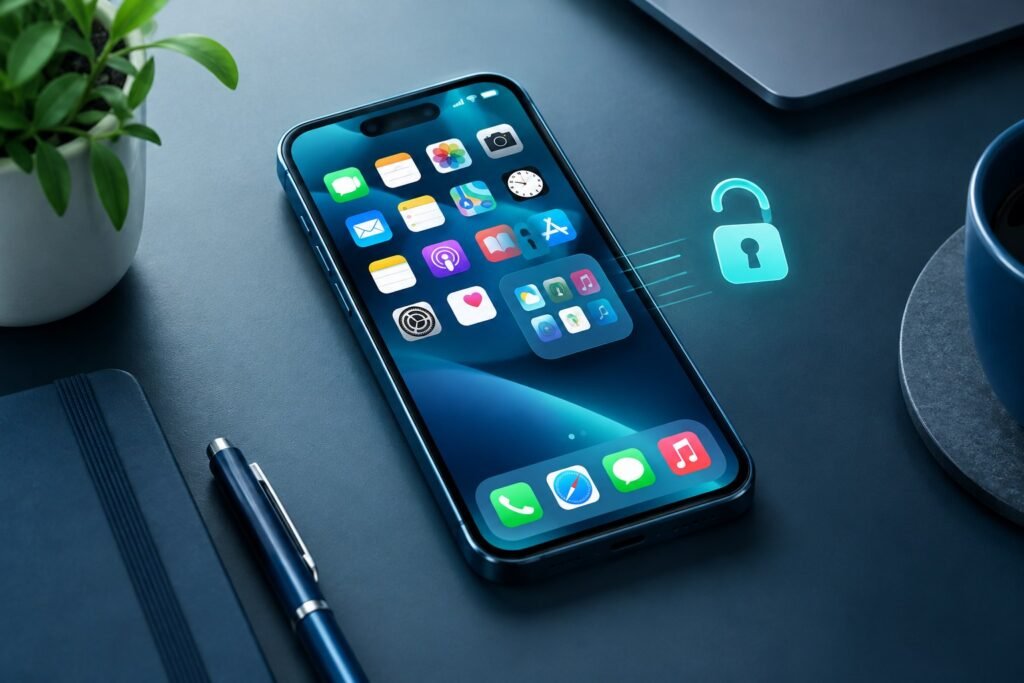
Quick answer: To unhide apps on iPhone (iOS 18 or later), open App Library → Hidden, authenticate with Face ID, Touch ID, or your passcode, touch and hold the app, and choose Don’t Require Face ID (or the corresponding authentication option). The app returns to App Library. If you also want its icon on the Home Screen, drag it there from App Library.
An app that seems to have vanished is not necessarily deleted. It might be in Apple’s authenticated Hidden folder, on a concealed Home Screen page, in App Library without a Home Screen shortcut, or restricted by device settings. These are different situations with different fixes.
What This Guide Is Based On (Not a Fabricated Review)
This is a how-to article rather than an opinion-based product review. For its main instructions, we verified Apple’s official guide to finding missing and hidden iPhone apps, including the authenticated Hidden folder, Home Screen page visibility and dragging an app from App Library. We do not invent a star rating, claim to have tested every iOS version, or present unverified search-forum comments as Apple-certified fixes. Screens and labels may vary across iOS versions.
Where Are Hidden Apps on iPhone?
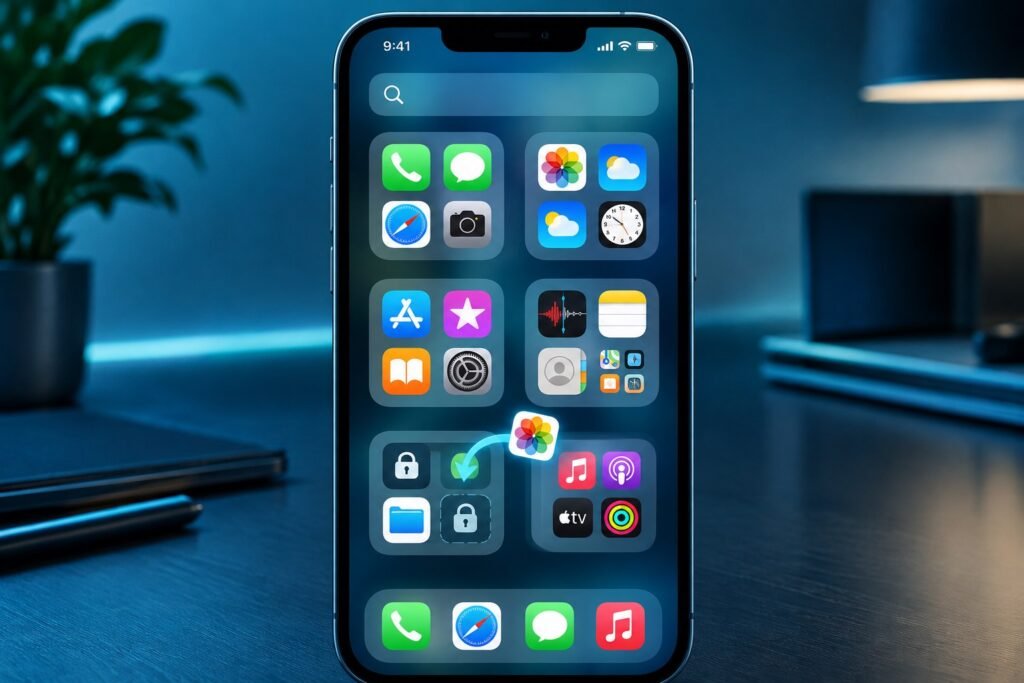
Apple distinguishes between an app hidden using Face ID and an app icon simply removed from your Home Screen. From iOS 18 onward, supported downloaded apps can be placed in a protected Hidden folder at the bottom of App Library. You must authenticate to see or open those apps; they also do not appear in ordinary iPhone Search while hidden.
By contrast, choosing Remove from Home Screen does not hide an installed app in the same protected sense. Its icon remains accessible in App Library, and Search may still locate it. Likewise, hiding an entire Home Screen page does not move its apps into the authenticated Hidden folder.
How to Unhide Apps on iPhone Using the Hidden Folder
- Unlock your iPhone and swipe left through all Home Screen pages until you reach App Library.
- Scroll to the bottom and select the Hidden folder.
- Authenticate with Face ID, Touch ID, or your device passcode.
- Locate the app you want to restore, then touch and hold its icon.
- Tap Don’t Require Face ID, Don’t Require Touch ID, or the comparable option shown on your device.
- Authenticate again when prompted. The app moves out of Hidden and becomes visible in App Library.
Important: This removes the app’s Hidden protection. It does not necessarily place a shortcut on the Home Screen. Follow the next section if you want that icon back as well.
How to Add an App Back to the iPhone Home Screen
If you want to know how to get an app back on the Home Screen on iPhone, the following method works when the app is installed and visible in App Library:
- Swipe all the way left to App Library.
- Find the app by browsing categories or using the App Library search field. For a previously hidden app, unhide it first.
- Touch and hold its icon; drag it onto the desired Home Screen page.
- Position the icon and tap Done if your iPhone displays that button.
Dragging is the reliable method across recent iOS releases. Depending on the app and system version, its context menu may also offer Add to Home Screen.
How to Find Hidden Apps on iPhone if You Cannot See the Folder
First, verify whether you are looking for a truly hidden app or simply a missing shortcut. The Hidden folder is at the bottom of App Library on supported iOS versions. An app cannot be revealed by ordinary Search while it is in that authenticated folder.
Check the Hidden Apps list in Settings
Open Settings → Apps → Hidden Apps and authenticate. This provides another way to see which apps have been hidden, although the App Library method is the usual way to unhide one.
Check whether a Home Screen page was hidden
- Touch and hold empty space on the Home Screen.
- Tap Edit → Edit Pages, or tap the row of page dots if that option is shown.
- Select any unchecked page circles, then finish editing.
Apps on those pages were not deleted. Revealing the page makes their icons accessible again.
Check App Library and installation status
Search App Library for the app name. If it is missing and was not intentionally hidden, open its App Store listing to determine whether it still needs to be downloaded. Consider whether your device is managed by a school or employer or subject to Screen Time restrictions, which may affect app availability.
How to Open or Access Hidden Apps Without Unhiding Them
You do not have to unhide an app to use it. Open App Library → Hidden, authenticate, tap the app, and authenticate again if requested. This is useful if you prefer an extra privacy barrier but still want regular access. The privacy feature is not a guarantee that the app leaves no trace: certain device settings and purchase history may still reveal its name.
How to See Hidden Apps on iPhone vs. Apps Removed From Home Screen
| Situation | Where to look | What to do |
|---|---|---|
| App hidden with Face ID | App Library → Hidden | Authenticate, long-press, select Don’t Require Face ID |
| App icon removed from Home Screen | App Library | Drag icon back to Home Screen |
| Entire Home Screen page hidden | Edit → Edit Pages | Check the hidden page |
| App not installed | App Store | Download again if available |
| App blocked by restrictions | Screen Time or device management settings | Review permitted apps and applicable controls |
How to Delete Hidden Apps on iPhone
Sometimes your goal is not to restore an app but to remove it altogether. The clearest route is to first unhide it through App Library → Hidden. Once it appears normally in App Library or on the Home Screen, touch and hold the app, choose Delete App if offered, and confirm. Device restrictions can prevent deletion. Removing an icon from the Home Screen alone does not uninstall the app.
Check whether the app stores important files, photos, or local data before deleting. Uninstalling and reinstalling can remove data that has not been backed up or synced.
Why Won’t an iPhone App Unhide?
- You are not authenticating successfully: Use your passcode when the system offers it, and make sure you are using the correct device credentials.
- You are in the wrong folder: An ordinary App Library category is not the protected Hidden folder.
- The app was removed rather than hidden: Reinstall it from the App Store if available.
- Restrictions apply: Check Screen Time, app age/content settings, and any management profile.
- The icon is still missing: Find the unhidden app in App Library and drag it back to the Home Screen.
If you are also reorganizing your phone or troubleshooting connectivity, see our guide to sharing a Wi-Fi password on iPhone and Android.
Frequently Asked Questions
1. How do I unhide an app on iPhone quickly?
Open App Library, unlock the Hidden folder, long-press the app, and select Don’t Require Face ID or the equivalent option. Then drag it to the Home Screen if needed.
2. Where is the hidden apps folder on iPhone?
It is near the bottom of App Library, reached by swiping left past your last Home Screen page. Access requires authentication.
3. How can I find hidden apps on iPhone using Settings?
Go to Settings → Apps → Hidden Apps, then authenticate. You can review the list there and use App Library to restore individual apps.
4. Can I open a hidden app without unhiding it?
Yes. Unlock App Library’s Hidden folder, tap the app, and authenticate if prompted. The app can remain hidden.
5. Why can’t I see an app after unhiding it?
Unhiding restores the app to App Library, not necessarily your Home Screen. Search App Library and drag the app icon onto the Home Screen.
6. Does deleting an icon from the Home Screen delete the app?
No. Choosing Remove from Home Screen preserves the installed app in App Library. Delete App is a separate action.
7. Are all preinstalled iPhone apps eligible for hiding?
No. Apple says built-in apps cannot be hidden using the same authenticated app-hiding feature; it is primarily for eligible downloaded apps.
Final Takeaway
To unhide an iPhone app, first identify how it was hidden. The authenticated Hidden folder, a missing shortcut, and a hidden Home Screen page are three separate problems. Use App Library’s Hidden folder for truly hidden apps, then drag the restored icon to your Home Screen if you want one-tap access.
Official Sources and Method
This guide is based on Apple’s documentation and was checked on November 12, 2026. Menu wording can vary by iOS version and device authentication method. Apple: Lock or hide an app · Apple: If you can’t find an app on the Home Screen. This is a documentation-based guide, not a claim of hands-on testing across every iPhone model.