 Ideas for a smarter digital life.

You can make a QR code for a website in minutes: copy the destination link, paste it into a QR code generator, download the image, and scan it with a phone before sharing it. You can also create a QR code directly from a page in Google Chrome or add one to a design in Canva.
The important part is not generating the black-and-white square. It is making sure the code opens the right destination, remains readable on a phone, and is suitable for wherever people will see it.
This guide explains how to create a free QR code for a URL, when to choose static or dynamic codes, which download format to use, and how to avoid common scanning problems.
What is a QR code, and what can it do?
A QR (Quick Response) code is a two-dimensional barcode that a compatible camera or scanner can read. A website QR code typically stores a URL. When someone scans it, their device offers to open that web address.
QR codes are useful when people are moving between print and digital experiences. A visitor can scan a menu on a table, open a product page from packaging, or visit an event registration form without typing a long address.
However, a QR code does not automatically create a website or file. The destination must already exist and be accessible to the intended audience.
How to make a QR code for a URL in six steps
If your goal is to create a QR code for a URL, this is the simplest general workflow:
- Open the destination page. Check that you have the final web address, not an editing link or a page visible only to your account.
- Copy the full URL. Prefer a secure
https://address. Avoid unnecessary tracking parameters unless you need them for a campaign. - Open a reputable QR code free generator. Choose a static QR code if the destination should stay fixed and you do not need provider-based scan analytics.
- Paste the link and generate the code. Preview the pattern and keep a light margin around it. If the service offers styling, begin with a simple dark pattern on a light background.
- Download the image. PNG works well for most digital uses. For professional printing, choose a vector format such as SVG or a high-resolution print export if supported.
- Test before sharing. Scan the exported file on an iPhone and an Android phone if possible. Check the final destination, permissions and readability at the intended size.
Example: A local workshop has a public registration page at https://example.com/register. The organizer copies that page’s public URL into a generator, downloads the code, and tests it from a printed invitation. The QR code leads to the existing registration page; it does not collect registrations by itself.
Create a free QR code directly in Google Chrome
For a web page already open in Chrome on a computer, you can make a QR code without visiting a separate generator:
- Open the page you want to share.
- Select Chrome’s More menu (three dots).
- Open Cast, save, and share and choose Create QR code.
- Choose Download to save the generated code, then test it with another device.
The exact menu placement can change with browser versions. Google’s Chrome page-sharing instructions provide the official route.
This method is convenient for sharing a single page quickly. If you need detailed print styling, branding or tracking, review the alternatives below.
Make a QR code in Canva
Canva is a practical option when the code will appear on a poster, invitation, card or presentation.
- Open the relevant design in Canva.
- Open Elements or Apps and search for QR code.
- Choose Create static for a fixed URL, or review the available dynamic option if you need to update the target later.
- Enter the URL and generate the code.
- Position the code in your layout with enough empty space around it.
- Download the finished design and scan the downloaded result—not only the preview inside the editor.
Canva distinguishes static codes from dynamic ones; customization, tracking and dynamic management features depend on the option and account plan. See Canva’s current QR code guidance before committing to a design.
Can you customize a QR code or use it for Google Forms?
A custom QR code may use brand colors, a short explanatory label or a subtle logo. Keep the modules easy to distinguish, leave clear space around the edges and scan-test after every design change. A decorative code that does not scan is not useful branding. If you are searching for how to create a QR code in Canva, the simple procedure above is enough for a fixed website link; the printing guide covers additional layout choices.
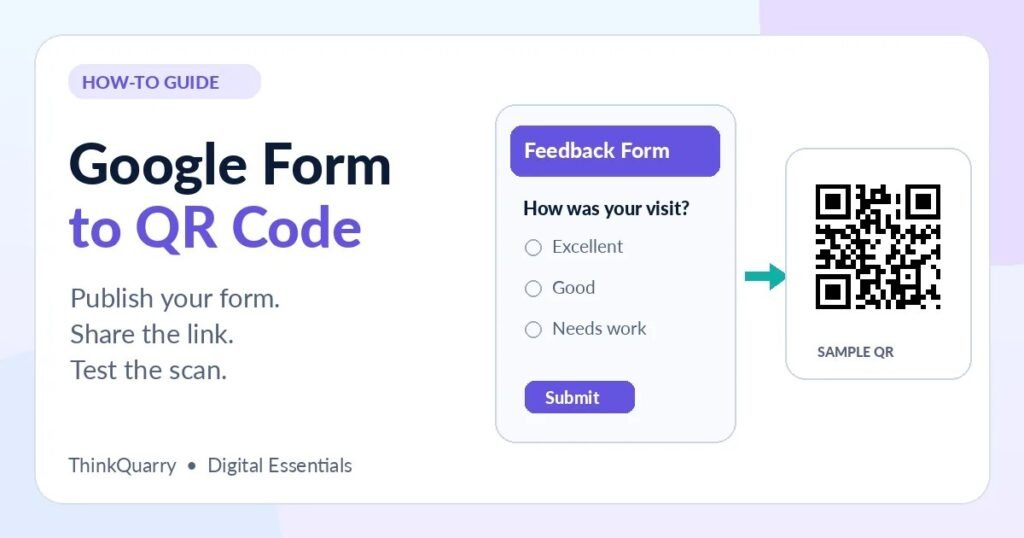
You can also make a QR code for a survey or registration link. For readers wondering how to make a QR code for a Google Form, copy the responder link to the published or shared form, generate a URL-based code, and test it in a signed-out browser. Our separate Google Forms QR code guide covers sharing permissions and common mistakes. (Enable this proposed link only after the cluster is published.)
Static vs dynamic QR codes: which should you choose?
| Feature | Static QR code | Dynamic QR code |
|---|---|---|
| Destination | Embedded directly and fixed | Typically uses a redirect controlled by a service |
| Change destination later | Not within the code | Often possible through the provider |
| Scan analytics | Not built into the code itself | May be offered by the provider |
| Ongoing dependency | The destination URL must keep working | The destination and redirect service must keep working |
| Good fit | Stable pages, permanent profile links, simple sharing | Campaigns, frequently changing menus, managed print materials |
If you are looking for a free QR code generator that doesn’t expire, start with a conventional static code from a reputable provider, then confirm that the destination link is under your control. No generator can guarantee that a third-party web page will remain online forever.
Does a free QR code expire? A conventional static QR code does not contain a built-in expiration date. But it can stop being useful if the website closes, the page moves, or the linked content becomes private. Dynamic QR codes can depend on a vendor’s subscription, redirect service or expiration settings.
For a QR code you plan to keep on packaging or signage for years, use a URL you control and have a plan for keeping that page available.
What file format should you download?
- PNG: A convenient choice for websites, presentations, email graphics and many small prints. A QR code PNG should be exported large enough for its final use. Export enough pixels for the final display size.
- SVG: A vector option that can stay sharp when resized, when your generator and design software support it.
- PDF: Useful for delivering an entire print-ready design with the QR code already placed correctly.
Do not enlarge a tiny PNG repeatedly and expect sharp edges. If an image looks fuzzy or the square modules are blended together, export again at a higher resolution.
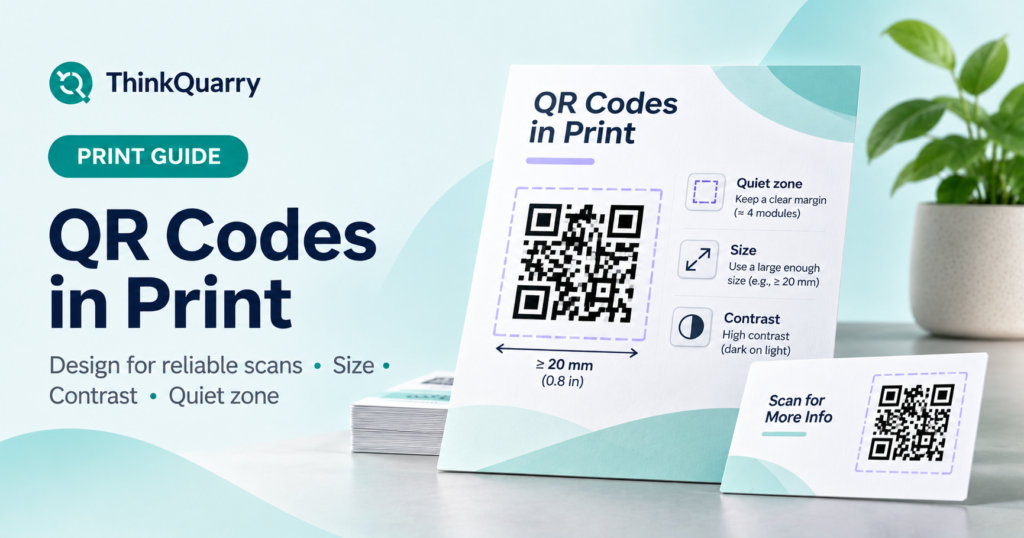
For paper materials, read our dedicated guide to QR codes in print for recommended sizing, quiet zones, colors and file checks. (Publish this cluster article before enabling the link.)
How to check whether your QR code works
The best test reproduces the experience a real visitor will have:
- Open the saved image or a physical print at its intended size.
- Scan it using a smartphone camera or a trusted QR scanner.
- Confirm the URL is the address you intended—not a lookalike domain.
- Open the link and check loading speed, access restrictions and mobile layout.
- Try another phone, lighting condition and scanning distance if the code will be used publicly.
If the QR code opens a Google Form, test that responders can access the form without your editor permissions. Our Google Form QR code walkthrough covers that specific process. (Publish the cluster article before enabling the link.)
Why a QR code might not scan
Low contrast: Pale modules on a busy photo are harder to detect. Start with dark marks on white.
Missing margin: A QR code needs clear space around its edges. Decorative borders and nearby text can interfere with detection.
Tiny printing: Even a technically valid code may be hard to scan if its modules are too small at the user’s viewing distance.
Wrong link or permissions: The QR pattern can scan perfectly while the destination returns a 404 error, asks for an unexpected login or shows an unpublished document.
Poor surface or image quality: Reflections, folds, curved packaging and blurry exports can create real-world problems. Check the actual material before a large print run.
Tips for making a QR code people will actually use
Tell visitors what they are opening. A short label such as “Scan to view the menu” is more useful than an unexplained square. When space allows, include a readable short URL for people who cannot or prefer not to scan.
Avoid linking directly to sensitive personal information or exposing private login details in the code. Verify the intended domain before scanning unfamiliar QR codes, especially ones stuck over existing public signs.
A QR code is also not the same as a Wi-Fi sharing code: Wi-Fi codes can carry network connection details rather than a standard website URL. If that is your goal, see ThinkQuarry’s guide on sharing a Wi-Fi password with a QR code.
Frequently asked questions
Can I create a free QR code without signing up?
Yes. Chrome’s built-in page-sharing option and some static QR generators let you create a code without opening a paid account. Check each service’s terms, export options and privacy policy.
How do I make a QR code for a website link?
Copy the exact public URL, paste it into a static QR generator or use Chrome’s Create QR code option, download the image, and test the destination on a phone.
Do QR codes expire?
A standard static QR code does not expire by itself. The webpage it points to can become unavailable, and dynamic QR codes may be affected by the provider’s policies or subscription.
Can I edit a QR code after printing it?
You cannot change the embedded destination of a static QR code. A managed dynamic QR code may allow the target link to change without reprinting, provided its redirect service remains active.
Is PNG good enough for a QR code?
Yes, for many uses. Choose a sufficiently high-resolution PNG and test it at the final size. Vector formats are often preferable for print designs that require repeated resizing.
Do people need a special app to scan QR codes?
Many modern phones support QR scanning through their built-in camera. Some devices or configurations may require a scanner function or a compatible app.
The takeaway
To make a QR code, begin with the destination and the visitor’s experience. Choose a fixed static code for a stable page, use a dynamic service only when its extra features are necessary, download a sharp image, and scan-test the final version. A few minutes of verification can save a much bigger problem after invitations, menus or posters go out.
Sources and further reading
- Google Chrome Help: Share pages with a QR code
- Canva Help: Create and manage QR codes
- DENSO WAVE: QR Code margin and quiet zone
For a practical example of sharing a Wi-Fi network with a scannable code, see how to share your Wi-Fi password. You can also explore ThinkQuarry free tools for other quick workflows.