 Ideas for a smarter digital life.
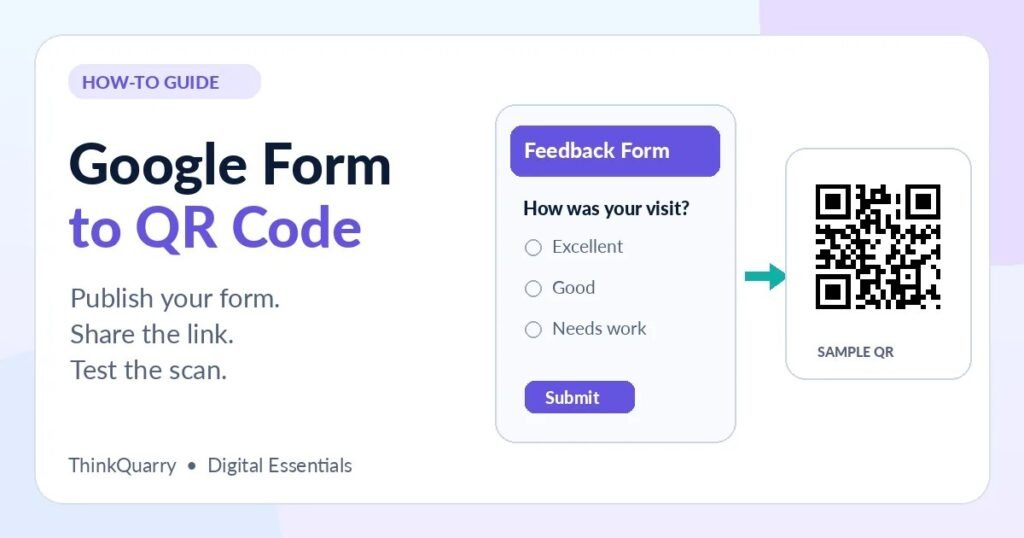
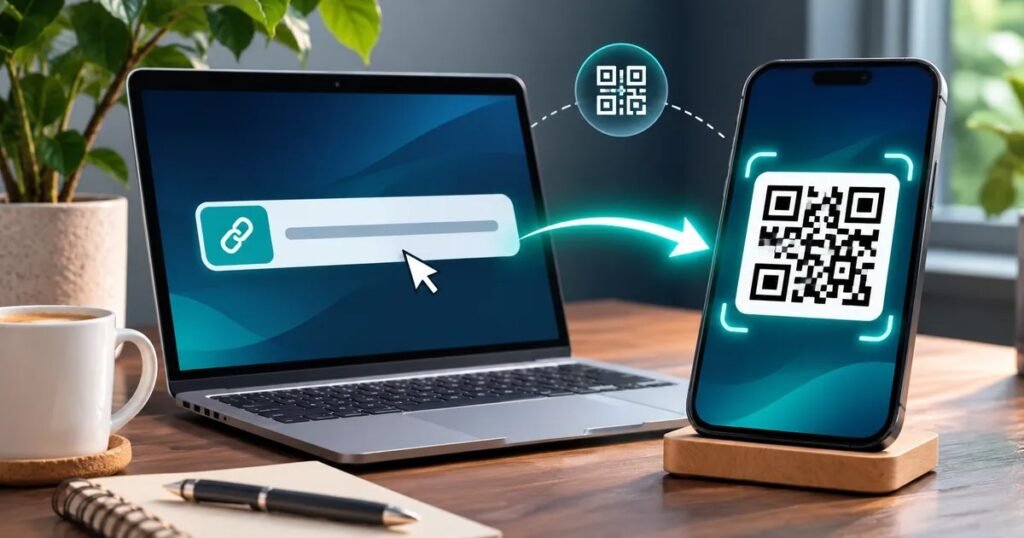
To make a QR code for a Google Form, publish the form, copy its responder link, paste that link into a QR code generator, and scan the downloaded code to confirm the form opens. You can then place the code on a flyer, slide, reception desk sign or event handout.
The most common mistake is using the link meant for editing the form instead of the link meant for people answering it. The other frequent problem is forgetting that a QR code cannot override the form’s sharing restrictions. This guide helps you avoid both.
Before you start: check the form itself
Open your form in Google Forms and review it as a participant would. Give the form a clear title, make sure the questions are complete, and check whether responses require an account or are limited to certain people.
Google’s current publishing flow lets form owners control who can respond. A form that is unpublished will not become publicly accessible simply because its URL has been put inside a QR code.
Decide who should scan it:
- Public audience: A feedback form on a flyer or shop counter usually needs access that allows intended visitors to respond.
- Internal audience: A school, company or club survey may intentionally require a work or school account.
- Limited participants: A registration form may use restrictions, deadlines or one-response limits; communicate those conditions next to the code.
Step 1: publish the Google Form
Open the form and use Publish if it has not been published yet. Review the responder-access settings before confirming. Depending on your account and form configuration, you may be able to select broader link access or a restricted audience.
For public events, confirm the intended people are actually allowed to respond. For a private workplace form, keep the appropriate access restrictions and explain them clearly.
If you enabled Limit to 1 response, Google says participants must sign in to a Google Account. That may be appropriate for an internal form but adds friction to public feedback requests. See Google’s official publishing and access instructions for the latest options.
Step 2: copy the responder link, not the edit link
Google offers several ways to get the respondent-facing link. In the form interface you can use options such as Preview → Copy responder link, Published → Copy responder link, or Share → Copy responder link, depending on what is shown.
When available, you can choose Shorten URL to copy a shorter response link. The short link is useful for printing beneath a QR code as a fallback, but first verify it opens the same form.
Open the copied address in a separate private browser window. If you see the form as a respondent, you have the right kind of link. If you see editing controls or an access-denied message, revisit the sharing settings.
Step 3: turn the Google Form link into a QR code
Now that you have a tested responder link:
- Open a reputable static QR code generator.
- Select the URL or website-link option.
- Paste the Google Form responder link.
- Generate the code and download it as PNG for slides or basic print material. Choose a suitable vector or print format if your service supports it.
- Open the downloaded image and scan it with a different phone.
For a public survey that will remain at the same URL, a free static code is usually sufficient. A dynamic code may be helpful if you need a managed redirect or later want to change where the printed QR sends users, but check provider costs and long-term dependency first.
Want a broader explanation of these options? Read our pillar guide on how to make a QR code for free. (Enable this link after the pillar is published.)
Alternative: make the QR code with Chrome
If you prefer not to use a separate QR service, open the form’s responder URL in Google Chrome on a computer. Use More → Cast, save, and share → Create QR code, then download the image.
The key is to open the responder page before you generate the code. Creating a code for your form editor address can lead the audience to the wrong page or a permission error. Google’s Chrome Help article documents the feature.
How to test a Google Forms QR code properly
A preview on your own account is not enough. Test the actual experience of someone who has never edited the form.
Test A — Scan: Open the downloaded QR image or a printed copy at its final size and scan with a phone camera. The URL shown should be the expected form link.
Test B — Access: Try with a separate account or a private browser session. If the audience is public, confirm that a member of that audience can view and submit without privileged access.
Test C — Submission: Enter an obvious test response, submit it, and check that it appears in the form’s responses. Remove the test entry afterward if it would distort your reporting.
Test D — Practical conditions: If the QR is printed, test under real lighting, at a realistic distance, and on the same paper or poster material you plan to use.
Troubleshooting: QR code scans but the form will not open
| Problem | Likely reason | What to check |
| “You need permission” | Audience restrictions do not match respondents | Publish and review responder access |
| Google account sign-in appears | One-response limit or account restriction | Decide whether sign-in is necessary |
| Form cannot accept responses | Form is unpublished or no longer accepting them | Check publish status and response settings |
| QR opens editing interface | You copied an editor link | Copy the responder link instead |
| QR will not scan | Low contrast, small print or distorted image | Re-export, add quiet margin and test size |
A QR code can be perfectly readable yet still lead to a form that is not accessible. Always troubleshoot the destination and the image separately.
Where Google Form QR codes work best
Event registration
Place a QR code near the sign-in desk or on an invitation. Use a short prompt such as “Scan to register” and explain whether registration closes at a certain time.
Classroom feedback or quizzes
Teachers can display a code on a slide. Before class, check whether students need to sign in with school accounts. For repeated assessments, keep each form’s QR clearly labeled so answers are not sent to the wrong assignment.
Customer surveys
A cafe or retail store can place a code on a receipt holder or counter sign. Keep the survey short, tell customers approximately what it asks, and avoid requesting more personal information than necessary.
Volunteer and attendance forms
A printed sign can take visitors to a check-in form. If the form collects contact details, communicate how those details will be used and who can access responses.
Print and display tips for a Google Form QR code
Use a clear call to action such as “Scan to share feedback”. Keep the URL or a shortened readable address beneath the code when possible. Avoid stretching the QR image or placing it over a patterned background.
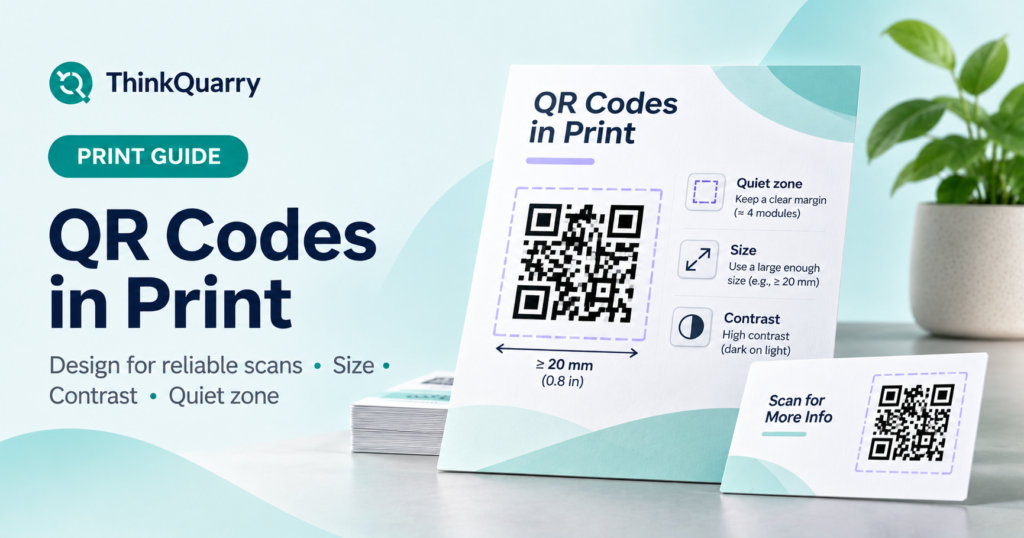
For close-up print use, start with a clear code around 2 × 2 cm or larger, then test it on real devices; larger sizes may be necessary for distant scanning or complex codes. Maintain a blank margin around the full pattern. Our QR codes in print guide explains size, format, contrast and quiet zones in more detail. (Enable this link after publishing.)
Frequently asked questions
Can I make a Google Form QR code for free?
Yes. After copying your form’s responder link, you can use a static QR generator or Chrome’s QR feature without necessarily buying a dynamic QR plan.
Does a QR code automatically make my Google Form public?
No. Google Forms permissions still apply. Publish the form and configure responder access for your intended audience before distributing the code.
Can I use a QR code for a Google Form on a poster?
Yes. Download a sharp image, maintain enough white space, add an instruction such as “Scan to respond,” and test a physical sample before printing many copies.
Why does my Google Form QR code ask people to sign in?
Your form may have a one-response limit or restricted access. Review the form’s settings; some restrictions intentionally require authentication.
Will the QR code stop working when I close the form?
The QR pattern can still scan, but users may no longer be able to submit responses. Reopen the form if appropriate, or replace the printed call to action if the activity has ended.
Final checklist
Before you publish a sign, slide or flyer, confirm the form is published, the link is for responders, permissions fit your audience, a test response arrives correctly, and the printed QR is readable. That five-part check matters more than which generator you used.
Sources and further reading
- Google Docs Editors Help: Publish and share your Google Form
- Google Chrome Help: Create a QR code for a page
- DENSO WAVE: QR Code quiet zone
Start with the main QR code tutorial, explore QR codes in print, and see Wi-Fi QR sharing.