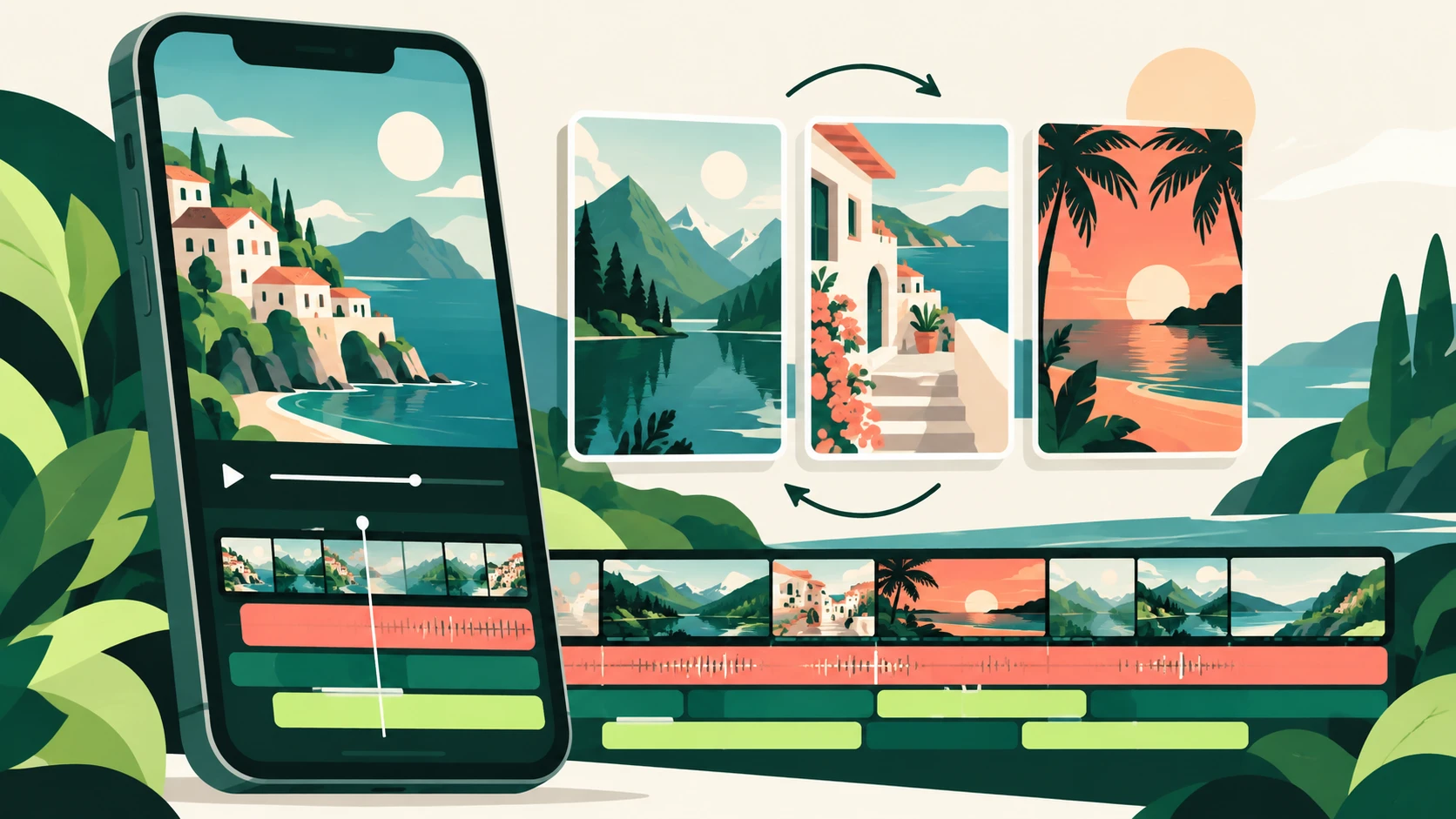
A CapCut template is a reusable video layout that lets you replace prepared media slots with your own photos or clips. It can provide an existing rhythm, transitions, effects, or text treatment, helping you assemble an edit without building every element from the beginning.
The useful question is not simply which template is popular. It is whether the template suits your footage and message. This guide explains how to find a CapCut template, customize it, troubleshoot a missing Templates section, and inspect the final export.
How is a template different from an ordinary project?
A project is the working edit you are building. A template supplies a prepared structure that you adapt. The amount you can change varies, so preview the template before relying on it for a detailed design.
Think of a template as a starting layout. It cannot fix weak source footage, inaccurate captions, or a message that takes too long to become clear. You still need to choose the right clips and check how the finished sequence looks.
Some templates suit quick photo montages. Others suit short introductions or product highlights. A layout with rapid image changes may be a poor fit for footage that needs time to explain an action.
How do you find a CapCut template?
Start inside the official CapCut app or on its official website. Where supported, look for a Templates section, then browse or search for a style relevant to your project. CapCut’s official help also explains that template links can open a template in the mobile app.
Use a descriptive search phrase instead of only searching for “trending.” A travel montage, a simple product reveal, and a birthday photo sequence have different requirements. Search for the kind of edit you need and compare previews.
Before selecting one, inspect the number of media slots, their timing, the orientation, and whether any paid elements are indicated. A template that needs twelve clips is not an efficient choice if you have only three suitable shots.
How do you use a CapCut template on mobile?
The exact labels can change between versions, but the supported mobile workflow generally follows this sequence:
- Open the official app and find an available template.
- Preview the complete sequence.
- Choose Use template or the corresponding action shown.
- Select your photos or videos for the requested slots.
- Adjust the editable parts and review the preview.
- Export using the options available to your account.
Treat the first preview as a rough draft. A face can be cropped out, a product can appear too briefly, or a transition can hide the detail you wanted to show. Move or replace the affected media where the template allows it.
If the layout gives you less control than your project needs, switch to a different template or make a regular edit. Repeatedly fighting a rigid layout can take longer than building a simple timeline.
Can you use CapCut templates on desktop or the web?
CapCut’s help describes template workflows for online and desktop editing, while noting that support and availability can differ. The desktop selection can be more limited than mobile, and some template links are intended for the mobile app.
On the web, begin from the official editor’s home screen or dashboard and look for Templates. In desktop software, inspect the home screen and available template controls. If the same template is missing on another device, do not assume that the installation is broken.
When following a tutorial, check whether it is demonstrating mobile, desktop, or the web editor. Those interfaces should not be treated as interchangeable. Follow the official instructions for the version you actually use.
How should you choose the right template for your footage?
Choose the structure before the decoration. A useful template gives each important shot enough time and leaves space for the information viewers need.
For a short product introduction, make a rough sequence first: show the item, show one useful detail, then give the closing message. Select a template that can express those three stages without adding unnecessary transitions.
For a travel montage, mix the scale of the shots. A wide scene establishes the location; a closer detail gives the viewer something specific to notice. A series of nearly identical frames can feel repetitive even when the template itself is energetic.
For an instructional clip, prioritize readability. A dramatic effect is less valuable than a clear demonstration. If the viewer needs to read a step, give that step enough screen time.
How do you customize a template without making it look generic?
Replace every placeholder deliberately. Choose images that belong together, keep the main subject visible, and use a consistent tone in any editable text. Avoid filling a slot with an unrelated image simply because the template requests one more file.
Keep captions short enough to read at the actual playback speed. A useful test is to watch the preview on a phone without pausing. If you cannot finish reading a caption, shorten it or choose a slower layout.
Use a restrained visual identity. Repeating one or two colors and one clear text style is usually easier to follow than combining several unrelated treatments. A template is most useful when it supports your message without becoming the message itself.
Can you use AI-generated footage in a CapCut template?
AI-generated clips can be part of an editing workflow when their format and quality fit the available media slots. Inspect motion and subject consistency before importing them. The template will not repair an object that changes shape halfway through a shot.
If you need help preparing the source footage, our PixVerse AI beginner guide explains how to plan a focused prompt and review a generated clip. Generate with the final framing in mind so you do not lose an essential detail when the template crops it.
A practical combination is one clear generated scene, a brief title, and a closing frame made in the editor. Add accurate text during editing instead of relying on text invented inside generated footage.
Why is the Templates option missing?
CapCut’s official help identifies availability differences, older app versions, connection issues, and looking in the wrong section as possible explanations. A missing tab alone does not tell you which cause applies.
Check these in order:
- Confirm whether the instructions are for your device and editor.
- Look on the home screen or dashboard rather than only inside a project.
- Update through the official app store or official download source.
- Check your connection and try opening the app again.
- Read the current help guidance for availability in your region or version.
Avoid installing an unofficial “unlocked” build to recover one template. If the feature is unavailable, choose a supported workflow or create the edit manually with your own footage.
What should you check before exporting?
Watch the entire sequence once for the story, once for text, and once for technical problems. This is more useful than checking only a polished opening frame.
Look for cut-off captions, accidental black frames, unfinished placeholder text, awkward crops, and a closing shot that ends too suddenly. Listen for abrupt audio changes and confirm that the result still makes sense when muted.
Inspect the export options shown by your account. Availability of effects, export settings, paid elements, and watermark-related options can vary. Do not assume a tutorial’s export screen matches your current project.
Use your own or appropriately authorized media. For business work, check the applicable permissions for the template, music, effects, and other assets you actually used. An available download button by itself does not establish the terms for every use.
Frequently asked questions
Are all CapCut templates free?
Do not assume so. Check the selected template and export screen for any paid elements or account requirements before completing a project.
Can I change every part of a template?
Not necessarily. Editable elements vary. If a required change is unavailable, use another template or build a normal project.
Why does a template link open my phone app?
Some shared templates are designed for the mobile workflow. The official help describes links that redirect to CapCut mobile with a template ready to use.
Does a trending template guarantee more views?
No. Reach also depends on the message, audience, timing, distribution, and quality of the finished video. A template is an editing aid, not a performance guarantee.
Can I reuse a template with different footage?
Where the template supports it, you can create another version with your own media. Review the new preview rather than assuming the earlier timing and crop still work.
Official references
How to use and export templates, missing-template troubleshooting, and finding templates are CapCut’s official help resources. Feature information was checked on 15 October 2026; the selection and editing examples above are original ThinkQuarry guidance.