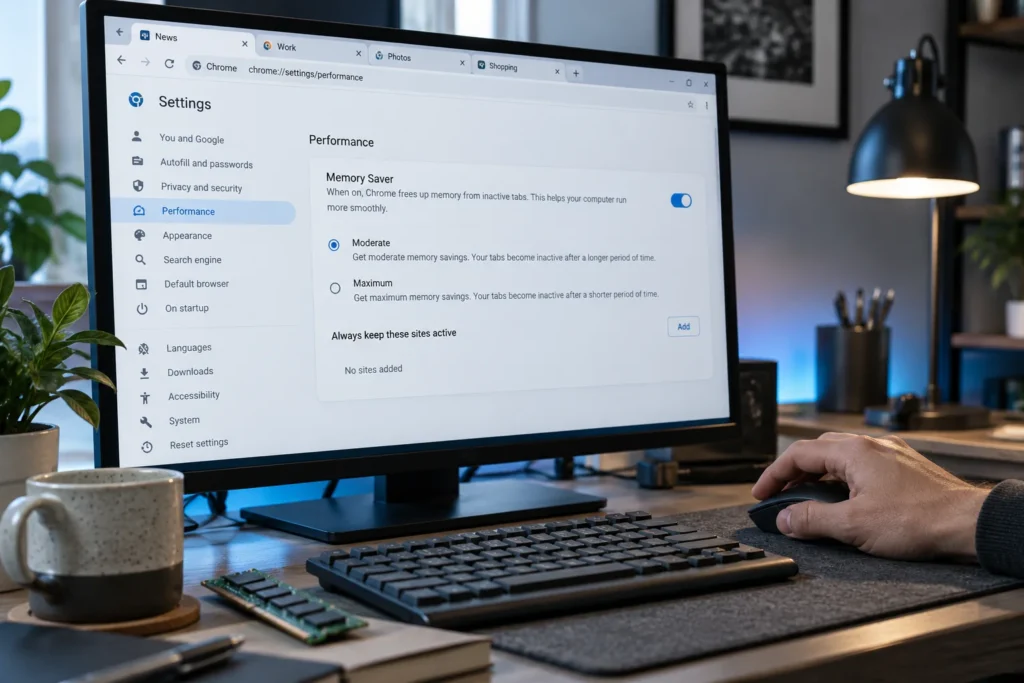
Quick answer: Chrome Memory Saver can deactivate eligible background tabs, which may reload when you return to them. Open Settings → Performance and add essential websites to Always keep these sites active. Use a few targeted exceptions rather than keeping every site active, and check whether the problem is actually a crash or a website timeout.
Practical example & checks
Isolate Memory Saver from other reload causes
Choose one ordinary site with a harmless draft and note the current setting. Do not test with an unsaved client form.
| Run | Change | Observation to record |
|---|---|---|
| A | Keep the current configuration | Does the background tab reload, and after what interaction? |
| B | Add only that site to the keep-active exceptions | Does the same task still reload? |
| C | Restore the initial setting if no improvement | Check the site session, extensions and application autosave |
If the problem persists in B, the test does not establish Memory Saver as the cause. A keep-active exception also cannot guarantee that a website never expires a login or that the browser never crashes. Use the application’s own save/draft control for important work.
Original ThinkQuarry teaching material added 19 October 2026. Hypothetical examples are not product-test results.
A reloaded tab is inconvenient when you are checking a dashboard or moving between reference material. It does not always mean Chrome deleted the tab or the computer is faulty. The useful first step is to identify what happened and when.
Separate three different problems
| What you see | Possible explanation | Useful check |
|---|---|---|
| Background tab refreshes when revisited | Memory Saver deactivation | Review Performance settings and test an exception |
| Error page or crashed tab | Crash or resource issue | Record the error and test the page separately |
| Website asks you to sign in again | Session expiration or account policy | Check the site’s timeout behavior |
A Memory Saver exception addresses tab deactivation. It is not a promise that a website will retain a session indefinitely, keep a network connection open or preserve unsaved form data under every condition.
Review the setting
- Open Chrome Settings.
- Choose Performance.
- Find Memory Saver and note the current setting or deactivation level.
- Find Always keep these sites active.
- Add only the sites that need continuous availability in your actual workflow.
- Return to the task and test the same pattern that previously caused trouble.
Google documents Memory Saver levels and site exceptions in its performance guidance. It also notes that some activities can prevent deactivation automatically. The available controls can vary with the Chrome version or an organization’s managed settings.
Choose exceptions by task
Consider a freelancer using one project-management board, a time tracker, an email inbox and 20 research pages. The board or tracker may justify an exception if deactivation interrupts work. Most reference articles may not. Start with the essential site and observe the result.
If you use a site only for a short part of the day, you can revisit whether its exception is still necessary. A long permanent list makes it harder to understand the memory tradeoff and can reduce the benefit of the feature.
Run a controlled comparison
Pick one ordinary test page and one important working site. Save any work before starting. Leave both in the background while you complete a normal task, then return to them and note whether they reload.
Add an exception for the working site and repeat a comparable task. Record the Chrome version, approximate time away from the tabs and what changed. This is a practical comparison, not a benchmark of every computer. Keep the workload similar enough to make the result useful.
If the exception does not solve it
Check whether the visible problem is a website timeout, connection interruption or tab crash. Try the affected website on its own without a large collection of other tabs. If you see an error message, record it before refreshing so that troubleshooting has a concrete starting point.
Review extensions that modify tabs or suspend pages, especially if you installed a separate tab-management tool. Multiple systems managing tab lifetimes can make the behavior confusing. Change one setting at a time and restore unrelated preferences after the test.
Protect work independently of tab settings
Save drafts regularly and confirm the application’s saved status. For a long form, prepare reusable text in a local or approved document before filling the website. A tab exception should improve continuity, but your only copy of important work should not depend on a background tab remaining active.
If your task needs offline access, prepare it explicitly. Keeping a tab active and making a document usable without internet are different capabilities.
Common questions
Should I disable Memory Saver entirely?
Try focused exceptions first. If you temporarily disable the feature for diagnosis, compare the result under a similar workload and decide whether the tradeoff fits your computer.
Does a reload mean the tab was closed?
Not necessarily. A deactivated tab can remain in the tab strip and load its content again when selected.
Why do forms still lose data?
Form-state behavior depends on the website and browser circumstances. Save work through the application’s supported mechanism rather than relying only on an exception.
For working through connection interruptions, see our Google Docs offline readiness test.
Sources and further reading
Prepared by ThinkQuarry. Documentation checked 3 October 2026. Menu labels may vary by version. Featured image: original AI-generated photographic concept created for ThinkQuarry. This editorial visual is not a product screenshot.