 Ideas for a smarter digital life.
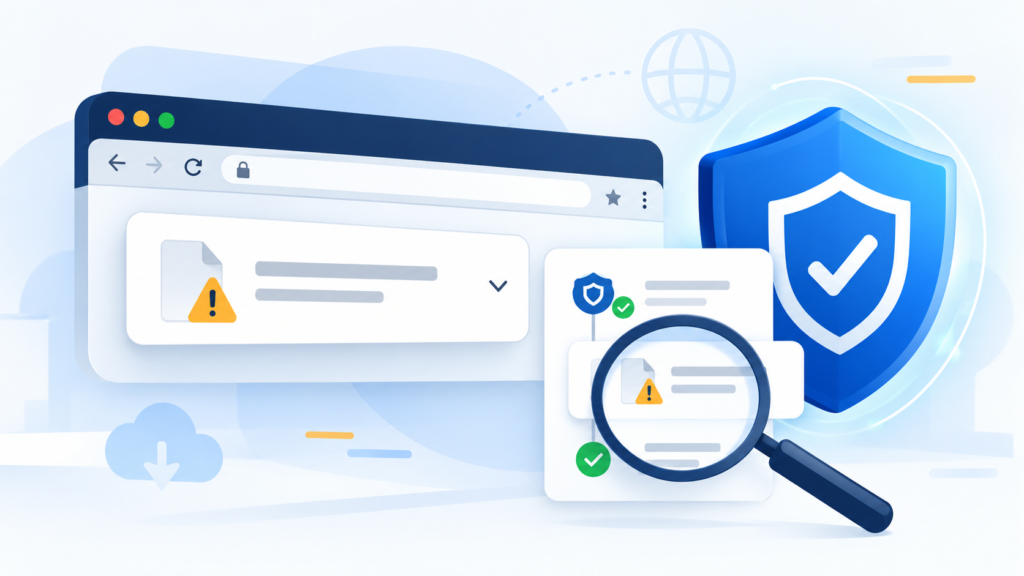
When Chrome displays “Virus scan failed,” check your security software’s history before retrying the download. The message can involve a blocked file or a problem with the scanning process. It does not, by itself, establish that the file is safe or infected.
Your next step depends on two questions: what exact error appears, and does it affect one file or every download?
Read the complete download error
Open Chrome’s Downloads page from the browser menu and note the wording.
| Message | First area to investigate |
|---|---|
| Virus scan failed | Security history and the download-scanning process |
| Virus detected | The detection record and file source |
| Network failed | Connection or network interruption |
| Disk full | Available storage |
| Insufficient permissions | Whether Chrome can save to the destination |
| Download blocked | Security settings or an applicable policy |
Google advises checking virus-scanning software for the reason a file was blocked. Its download-error help page also distinguishes several other download errors.
Use the actual message when seeking help. Saying “Chrome cannot download” leaves out the clue that determines the next check.
If only one file fails
Start with the source. Use the publisher’s official download page, confirm the expected filename and avoid replacing the blocked file with an unofficial mirror.
Inspect your antivirus or endpoint-security history for an event at the time of the attempt. Look for the filename, detection name and action taken. On a Windows device using Microsoft Defender, Protection history is the relevant place to inspect recent actions.
If the file is detected as malicious, keep it blocked and contact the publisher through its official support channel. An expected filename alone does not prove that the download is legitimate.
If the publisher provides a checksum, comparing it after a successful download can help detect an unexpected file change. A matching checksum establishes a match with the published file; it does not independently establish that the file is harmless.
If every download fails with virus scan failed
A single bad file is less likely to explain failures from several unrelated official sources. Narrow the scope carefully:
- Restart Chrome and retry a small, non-sensitive file from a trusted source.
- Check for browser, operating-system and security-software updates.
- Review security history for corresponding events.
- If authorised on your device, compare the same trusted download in another installed browser.
- Record whether the problem occurs in one browser or across browsers.
Do not open a suspicious file simply because another browser downloads it.
For example, if an official PDF fails in Chrome and another browser, that points toward a shared system or security component. If it fails only in Chrome, browser-specific settings or an extension become more plausible. Neither comparison identifies the exact cause by itself.
If the problem appears limited to Chrome
Use Chrome’s built-in update controls and restart it after an update is applied. Check whether the issue started after an extension was added or changed.
On a personal device, review optional extensions individually. Keep a record of what you change so you can restore the original configuration. A managed security extension should be reviewed by the administrator who maintains it.
Clearing all browsing data is not a guaranteed fix for a failed security scan. It can also sign you out of websites without addressing the component involved. Gather the error details first.
For browser maintenance instructions, use Google’s Chrome update guide.
When security software needs attention
If scanning errors began immediately after a security-product update or installation, use that vendor’s support and repair instructions. Avoid installing a second antivirus product as a quick experiment; overlapping components can make diagnosis harder.
On a work or school computer, provide IT with the source URL, timestamp, filename, full Chrome message and relevant security event. They can check policies and scanning components that ordinary user accounts cannot manage.
If no security event appears, report that too. The absence of an obvious entry is useful information, but it does not prove that security software was uninvolved.
Avoid turning a scanning problem into a security gap
Do not disable Safe Browsing, turn off antivirus or apply broad registry changes simply to force a file through. Those changes can affect later downloads as well as the current one.
Chrome also has download warnings that are distinct from a failed scan. Google explains these protections in its blocked-download guidance.
A successful recovery means a legitimate download completes while the intended security protections remain active. If the same file is still flagged, ask the publisher or your security provider to investigate rather than repeatedly overriding the warning.
If your error occurs while Google Drive prepares an archive, use our Google Drive ZIP download troubleshooting guide to distinguish archive preparation from a local scan error. For broader protection habits, see our cyberspace security guide.
Frequently asked questions (FAQ)
Does “virus scan failed” mean the file contains a virus?
Not necessarily. Review the scanning software’s details. The Chrome message alone is insufficient to decide whether the file is infected.
Why can’t I download anything because the virus scan failed?
A system-wide security or attachment-handling problem may affect multiple downloads. Compare trusted sources and browser behaviour, then inspect the corresponding security events.
Does Chrome scan downloads for viruses?
Chrome applies download protections, and local security software can also take action. The exact protections depend on your device and browser settings.
Should I disable antivirus to fix virus scan failed in Chrome?
Keep the protection active and investigate the recorded cause. Use the security vendor’s documented repair process or contact your administrator.
What should I send to support?
Include the exact error, source URL, filename, attempt time, Chrome version, Windows version if relevant, and whether other trusted downloads or browsers are affected. Remove private information before sharing screenshots or logs.