 Ideas for a smarter digital life.
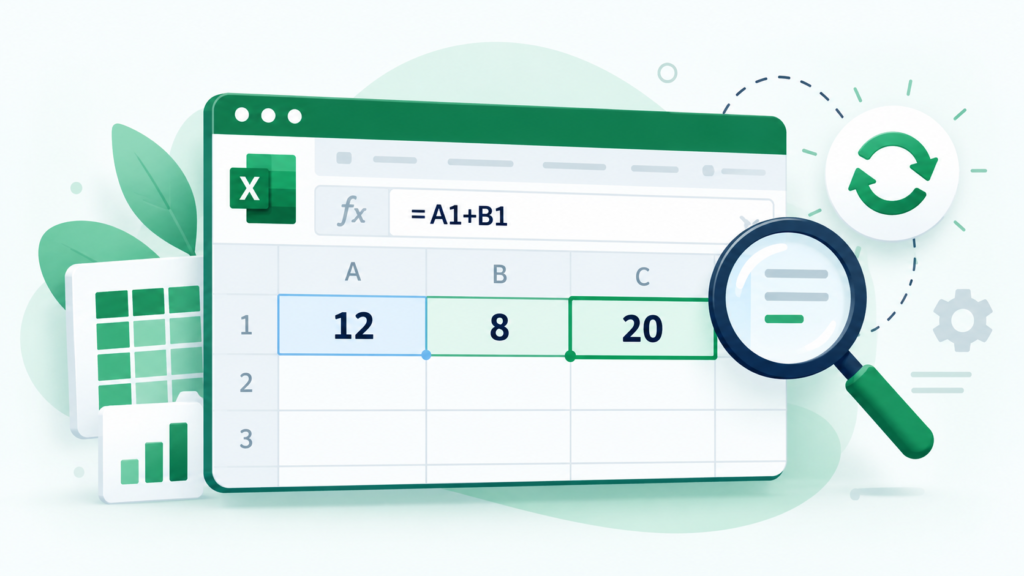
If an Excel formula is not calculating, first check what the cell displays. A visible formula usually points to a display or text-entry issue. An old numerical result suggests recalculation needs attention. An error such as #VALUE! means the formula needs a different kind of investigation.
Start with one affected cell. Changing unrelated settings across an entire workbook makes it harder to identify what actually solved the problem.
Match the symptom to the next check
| What you see | Check first | What success looks like |
|---|---|---|
| Many formula cells show their formulas | Show Formulas setting | Results appear again |
| One cell shows =A1+B1 | Cell format and characters before = | The cell evaluates the expression |
| A result stays the same after an input changes | Calculation mode | Editing an input changes the answer |
| A formula returns the wrong number | References and input data | The result matches a manual check |
| A cell shows an error value | The specific error and formula inputs | The underlying cause is corrected |
An Excel formula showing as text is not necessarily broken. Excel may simply be displaying the expression instead of its answer.
When Excel shows the formula instead of the result
Open the Formulas tab and check Show Formulas. If it is enabled, turn it off. This is especially useful when multiple formula cells suddenly display expressions.
If only one formula remains visible, select that cell and look at its number format on the Home tab. When a formula was entered into a Text-formatted cell, change the format to General, then edit and confirm the formula again. On Windows desktop, F2 followed by Enter is a convenient way to re-enter it.
Changing the format alone may leave the existing entry stored as text. Re-entry is the step that makes Excel interpret it again.
Also inspect the formula bar. Remove an unintended apostrophe or space before the equals sign. An expression intended for calculation should begin with =, such as =A1+B1. Microsoft documents these entry and display checks in its formula troubleshooting guidance.
When Excel formulas are not updating
If the cell already shows a number but keeps its old answer, check Formulas > Calculation Options in desktop Excel. Select Automatic when you want dependent formulas to update as inputs change.
To request a calculation immediately, use Calculate Now on the Formulas tab. Calculate Sheet limits the request to the active worksheet. Microsoft describes these options in its recalculation settings guide.
Manual recalculation is useful for diagnosis, but it does not explain every stale total. A formula might reference a different row, contain a fixed number or depend on data that has not refreshed.
Use a small example to check the result
In a spare area of a copy of your workbook, enter:
| Cell | Entry |
|---|---|
| A1 | 12 |
| B1 | 8 |
| C1 | =A1+B1 |
C1 should display 20. Change A1 to 15; the expected result becomes 23.
Now compare that behaviour with the affected cell. If the example updates but your original total does not, inspect the original references. A total based on A2 and B2 will not respond to changes in A1.
For a sales example, quantity 3 multiplied by unit price 25 should produce 75. A result of 25 could mean the formula points to the wrong quantity cell. A correct calculation can still answer the wrong question.
When formulas are not working in Excel but calculation is enabled
Read the specific error before making more changes. #NAME?, #REF! and #VALUE! describe different problems. Microsoft’s formula error reference can help identify the relevant category.
Check whether imported numbers are genuinely numeric. For example, a quantity copied from a website may contain a hidden space or arrive as text. Convert a small sample first and compare the calculation before changing an entire column.
Imported identifiers need different treatment from quantities: codes such as 00123 may need to remain text. Our guide to keeping leading zeros in Excel CSV imports explains how to preserve them without confusing identifiers with values intended for arithmetic.
Check for a circular reference if a total depends on itself. Avoid enabling iterative calculation merely to hide the warning; a deliberate iterative model needs its own design.
For linked workbooks or external data, distinguish recalculating formulas from refreshing the source. Recalculating an expression cannot retrieve data that has not been refreshed.
Windows, Mac and Excel for the web
The diagnosis is similar across platforms, but menus and shortcuts can differ. The ribbon commands above primarily describe desktop Excel. In Excel for the web, use the available formula and calculation controls rather than assuming every desktop shortcut applies.
If you need help, record your Excel platform, the formula, the displayed result and the result you expected. Replace private data with a small example before sharing it.
For a separate arithmetic check, our percentage increase formula and examples can help when your worksheet compares an old value with a new one.
Frequently asked questions (FAQ)
Why is my Excel formula not calculating just text?
Check Show Formulas, Text format and unwanted characters before the equals sign. For a Text-formatted entry, change to General and re-enter the formula.
Why does changing Text to General not fix the formula immediately?
The existing entry may still be stored as text. Editing and confirming it gives Excel another opportunity to interpret the expression.
How do I force Excel to recalculate?
Use Formulas > Calculate Now in desktop Excel. If results update only after a manual request, inspect calculation mode.
Why does one formula fail while others work?
Look at that cell’s format, formula references and input values. A workbook-wide setting is less likely to explain an isolated entry.
Can an Excel formula calculate and still return the wrong answer?
Yes. A valid expression can reference the wrong cells or use incorrect inputs. Compare it with a small calculation you can verify manually.
Continue with Spreadsheet data workflows
Use these related guides to choose your next step: