 Ideas for a smarter digital life.
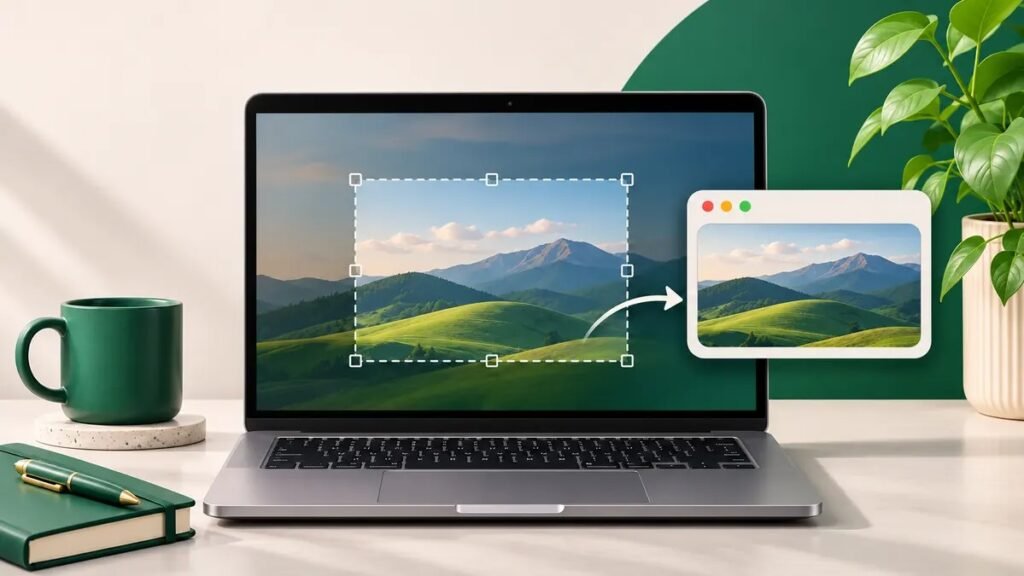
Quick answer. Press Shift + Command +
3 for the full screen, Shift + Command + 4 for
a selected area, or Shift + Command + 5 to open the
Screenshot toolbar. To capture one window, press Shift + Command
+ 4, then Space, and click the window.
Choose the
shortcut that matches the capture
| What to capture | Shortcut |
|---|---|
| Full screen | Shift + Command + 3 |
| Part of the screen | Shift + Command + 4, then drag |
| One window | Shift + Command + 4, then Space, then click |
| Capture options and save location | Shift + Command + 5 |
These shortcuts apply to Mac desktops and MacBooks. The Command key
is marked ⌘. Apple’s Mac screenshot
guide
Capture part of the
screen or one window
For an area screenshot, press Shift + Command + 4,
then drag the crosshair around what you want to show. Release to
capture, or press Esc to cancel. This is useful when
you need one error message and want to keep unrelated browser tabs out
of the image.
To capture an entire window, start with the same shortcut, then press
Space. Click the highlighted window. Use this method
when you want to show the dialog in context without including the rest
of the desktop.
Find, paste or
change where screenshots save
Screenshots usually save to the Desktop by default. If you can’t find
one, open Shift + Command + 5 → Options and check the
selected save location. For repeated captures, select a dedicated folder
so you can find the images in order.
To paste a capture directly into an email draft or document, hold
Control along with the screenshot shortcut and then
press Command + V in the destination. If you see a
floating thumbnail after capturing, you can click it to review and mark
up the image.
Prepare a
screenshot for support or documentation
- Capture enough context to show which app or step you are on.
- Hide account names, open chats and other private details before
taking the capture. - Reopen the image and check that the smallest text is readable before
sending it. - If the attachment is too large, resize a copy and confirm the text
still looks sharp. ThinkQuarry
image tools
If a shortcut does nothing, check the Screenshots section in macOS
keyboard shortcut settings. Some apps can prevent captures of protected
content.
Frequently asked questions
Where do screenshots go on
a MacBook?
Check your Desktop first, then verify the save location in the
Screenshot toolbar.
How do I capture only one
window?
Press Shift + Command + 4, press Space, and click the window.
Can I copy a
screenshot without keeping a file?
Add Control to the shortcut to copy the result to the clipboard, then
paste it where you need it.
How do I cancel a
screenshot selection?
Press Esc before releasing the selection or clicking a window.
Can I set a timer for a
Mac screenshot?
Open the Screenshot toolbar and look under Options for timer
settings. A timer is useful when you need time to open a menu.