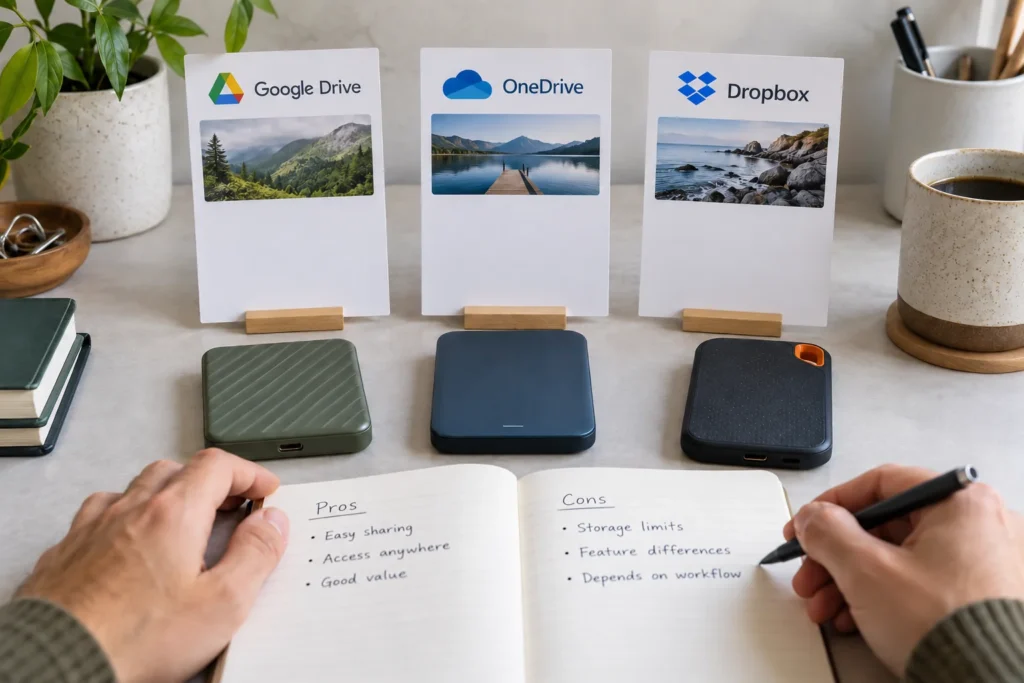
Featured image: original AI-generated photographic visual created for ThinkQuarry. Screen interfaces are conceptual mockups, not product screenshots.
Practical example & checks
A cloud-storage comparison you can actually complete
Use a harmless document, spreadsheet and image folder. Test each service on the same task before migrating a real project.
| Criterion | Evidence to record for each provider |
|---|---|
| Editing fit | Does the intended recipient open and edit the actual file format? |
| Sharing | Named recipient can access the folder with the intended role |
| Export | Downloaded files reopen with required content and formulas |
| Recovery | Restore a disposable deleted sample using current supported controls |
| Plan cost | Exact region, billing period, storage and required seats from the current plan page |
Illustrative decision: a team already working in Word and Excel may evaluate OneDrive first; a Docs-centred team may begin with Drive; a file-delivery workflow may trial Dropbox. Those are starting hypotheses, not benchmark winners. Record results and unknowns separately. Use the pairwise guides for the specific comparison you still need.
Original ThinkQuarry teaching material added 19 October 2026. Hypothetical examples are not product-test results.
Google Drive vs OneDrive vs Dropbox comes down to the work you need to finish: draft and review a document, exchange client files, or keep a project folder easy to manage. Start with the service your collaborators already use, then check sharing permissions, export quality and what happens when someone leaves.
Documentation checked on 1 October 2026. This is a documentation-based comparison and an original evaluation framework, not a hands-on benchmark. Features can vary by account, subscription and organisation policy.
Google Drive vs OneDrive vs Dropbox: quick 2026 comparison
| Your main task | Start by evaluating | What must pass |
|---|---|---|
| Review drafts with people who use Google Docs | Google Drive | The right people can comment or edit, and the exported document is usable. |
| Share Word or Excel work in a Microsoft environment | OneDrive | Your actual account supports the link audience and permissions you need. |
| Hand off a folder of PDFs, images and deliverables | Dropbox | The recipient can receive files with the intended view or edit access. |
| Keep a long-running team project | The service with suitable ownership and administration for your team | Access and files remain manageable when a collaborator leaves. |
These are starting points, not a universal ranking. A familiar tool that passes your essential tasks can be a better choice than a new service with a longer feature list. Use our software evaluation framework to define those essentials before comparing plans.
Google Drive: evaluate document review and access boundaries
Google Drive lets you assign file access for viewing, commenting or editing. Its restricted access setting limits opening to people who have access; link-based access can broaden the audience. For a draft that needs feedback without rewrites, check whether commenter access fits the task. For a client deliverable, start with the smallest audience that meets the need.
Google’s guidance also discusses limited-access subfolders for content that needs a different permission boundary. Treat folder structure as part of the sharing decision: a convenient project folder should not accidentally expose unrelated work. Consult the official Google Drive sharing guide for the available controls.
For an illustrative editorial workflow, keep the working brief and review draft together, then put approved deliverables in a separate client-facing location. Ask a collaborator to explain which version is ready to use. If that answer is unclear, improve the folder names and review process before changing platforms.
OneDrive: evaluate Microsoft file sharing in your actual account
OneDrive provides sharing choices such as specific people and, where enabled, anyone with the link. Microsoft explains that a specific-people link is limited to the named recipients or people who already have access. An anyone link can be forwarded. Organisation administrators may restrict which choices appear.
Folder edit access is powerful: it can permit changes including renaming, moving or deleting accessible contents. Check the permission before copying a link, especially when the recipient only needs to read a final document. Some controls, including download blocking or link expiry, have account or subscription conditions. See the official OneDrive sharing documentation.
For a team already exchanging Word documents, begin with a representative file rather than a blank sample. Ask two collaborators to complete your normal review task. Check the saved result, intended audience and handoff steps. That exercise evaluates your workflow; it does not establish that one provider is inherently faster or more secure.
Dropbox: evaluate delivery folders and permission clarity
Dropbox distinguishes view and edit access to shared folders. View access supports reading and downloading without changing folder contents; edit access permits changes, including adding or deleting files. Dropbox also explains that access granted to a parent folder extends to its subfolders.
That makes the boundary between internal work and client delivery important. Do not place private working materials inside a broadly shared parent folder and assume a deeper path hides them. Review the Dropbox permissions guide and sharing instructions for the recipient experience you need.
For a mixed-file handoff, prepare a short readme naming the final PDF, image folder and source files. A useful acceptance criterion is whether the client can identify the final deliverables without asking you which file to open. This is a test you can run, not a claim that we have run it on your account.
Run one realistic comparison exercise
Illustrative scenario: a freelancer and two reviewers need to approve a brief, track feedback and deliver a PDF plus six images to a client. None of these example files should contain private client information.
- Prepare the same sample kit. Use a short brief, a representative working document, a final PDF and an image folder. Apply the same names across each candidate service.
- Separate review from delivery. Define who needs editing, feedback or viewing. Choose a deliberately limited audience for the client-facing material.
- Check the recipient experience. With a willing collaborator, confirm what account or verification is required, what they can open, and what they can change. A signed-out window can check a public-link experience, but it does not replace testing a named recipient’s access.
- Inspect the exported deliverable. Check layout, tables, links and images in the format the client requires. Google provides download guidance; export availability does not mean every document will preserve its formatting.
- Review access after handoff. Verify who still has direct, group or parent-folder access. Removing one link is not the same as checking every access route.
- Record the result. Mark each requirement pass, fail or needs confirmation. A failed essential requirement should outweigh several convenient extras.
A comparison worksheet you can copy
| Requirement | Evidence to record | Decision rule |
|---|---|---|
| Review without unwanted edits | Role used and what the reviewer could actually do | Must match the agreed review task |
| Clear client handoff | Recipient steps, required account and visible files | Client can identify and receive the final files |
| Usable export | Format checked and any layout changes | Required deliverable opens correctly |
| Manageable permissions | Who has access through links, groups or parent folders | No unexplained access remains |
| Practical plan fit | Current local plan terms and required features | Essential tasks fit the available budget |
Keep observations separate from assumptions. “I found the sharing option in this account” is evidence; “all clients will find it easy” is not. For a reusable folder layout, read our simple digital file organisation guide.
Google Drive vs OneDrive vs Dropbox pricing and free storage (2026)
| Provider | Free cloud storage | Selected paid option | US price checked |
|---|---|---|---|
| Google Drive | 15 GB shared with Gmail and Photos | Google One Basic, 100 GB | $1.99/month |
| OneDrive | 5 GB shared cloud allowance | Microsoft 365 Basic, 100 GB | $1.99/month or $19.99/year |
| Dropbox | Basic, 2 GB | Plus, 2 TB | Check current billing option on the provider page |
Checked 3 October 2026 using Google One plans, Microsoft OneDrive plans and Dropbox plans. Prices are a dated US snapshot; currency, taxes, promotions and billing period can change the amount. These capacities are not equivalent plans, so compare the storage and features you actually need.
Best fit for students, teams and privacy-conscious work
- Students: check your school account and its access rules first. For a personal free account, Google has the largest standard allowance of these three, but remaining space depends on existing account usage.
- Teams: evaluate document compatibility, ownership and offboarding. A consumer subscription does not establish that your team has suitable administrative controls.
- Budget: calculate total annual cost for the required capacity and tools. Include any subscription you already pay for before adding another.
- Privacy: define whether you need named-recipient access, administrator controls or a particular encryption model. This guide does not award a security winner or claim that a provider meets your specific confidentiality requirements.
Continue comparing
- Google Drive vs OneDrive vs Dropbox: the complete comparison
- Google Drive vs Dropbox
- Google Drive vs OneDrive
- Dropbox vs OneDrive
- Secure client file-sharing checklist
Frequently asked questions
Which offers the most free storage?
The standard consumer allowances checked are Google 15 GB, Microsoft 5 GB of cloud storage and Dropbox Basic 2 GB. Shared account content can reduce available space.
Is cloud storage the same as a backup?
A synchronised folder alone does not establish a reliable backup. Keep an independent copy of important files and verify recovery for your chosen plan.
Which service should a small business choose?
Start with the document ecosystem your team uses, then verify file ownership, access management and offboarding in the intended business plan.
Can all three share files with clients?
All three offer sharing workflows, but the audience, account requirements and available controls can differ. Test a representative delivery with the intended recipient.
Storage, cost and recovery: questions to settle before paying
Compare the capacity you can actually use, not only a headline number. Google says its standard account allowance is shared across Drive, Gmail and Google Photos. Microsoft’s free cloud allowance is also shared with other Microsoft account content. Check your existing usage in the account before deciding how much room you need. The official Google storage explanation and Microsoft storage FAQ describe those pools.
Prices, taxes, billing periods and paid features vary, so this guide does not assign a universal cheapest provider. Compare your region’s current plan terms against the same requirements. A plan is unsuitable if a required permission or administration feature is missing, even when its storage looks inexpensive.
Also ask where a deleted file goes, how long recovery is available on your chosen plan, and what your independent recovery procedure is. Do not assume a synchronised folder alone provides the recovery you need. Keep a separate copy of irreplaceable final work and test your own restore process before relying on it.
Which cloud storage should you choose?
Start with Google Drive when your real review process revolves around Google documents; start with OneDrive when your collaborators already work in a Microsoft environment; include Dropbox when your main requirement is a clear file-and-folder handoff. Those are workflow-based recommendations, not measured performance rankings.
Choose the candidate that passes your essential tasks with the least confusion. Keep the decision worksheet, review the current account restrictions, and repeat the exercise when your team or requirements change. Explore more practical software decisions in our Software topic hub.