 Ideas for a smarter digital life.
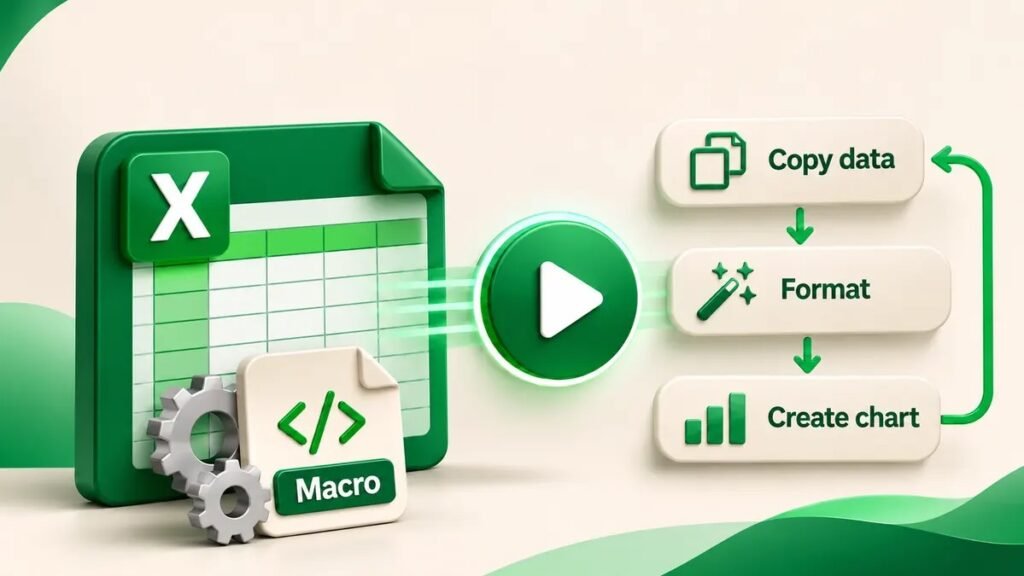
Quick answer. An Excel macro is a saved sequence of
actions you can run again. Use one when you repeat the same steps, such
as bolding and shading the headings in a weekly report. The desktop
Macro Recorder can capture your actions as VBA code while you work.
What can an Excel macro
automate?
A macro can repeat actions such as formatting cells, applying a
standard layout or inserting the same set of labels. It makes the most
sense when the starting layout and desired outcome are predictable.
Suppose your report arrives every Monday with the same headings in
A1:D1. You want bold headings and a pale green fill. Recording those two
actions once lets you reuse them on later reports with the same layout.
If the columns regularly move, a macro recorded against fixed cells can
format the wrong area. Test with a copy before using it on the only
version of a report.
Record a simple macro in
desktop Excel
- Create a practice workbook. Type four sample headings in cells A1
through D1. - Show the Developer tab if it is hidden. On Windows,
look under File → Options → Customize Ribbon. On Mac,
look in Excel’s ribbon customization settings. - Choose Developer → Record Macro. Give it a name
such asFormatReportHeaderand store it in This
Workbook. - Select A1:D1, apply bold text and add a fill color. Choose
Stop Recording as soon as you finish. - Open a test copy with the same layout. Use Developer →
Macros to select and run your macro. Check which cells
changed.
Avoid unrelated clicks and edits while recording. If the recorder
captures an extra action, practice again with a fresh copy. Microsoft’s
macro recording guide
Save and reuse the macro
Save the workbook as an Excel Macro-Enabled Workbook
(.xlsm) if it needs to retain the recorded macro. Give the
practice copy a clear name so it stays separate from your report
data.
The Macro Recorder generates VBA behind the scenes. Beginners can
record a task before learning to write VBA. Custom code becomes more
useful when a macro needs to react to changing inputs, such as a range
that grows every week.
Check what a macro will
change
Run a new macro on disposable data first. Check the target cells,
workbook and worksheet. Only run macros from sources you trust and
follow your organization’s Office settings when sharing macro-enabled
files.
If your task is a one-off, follow the direct workflow. For example,
moving a report column requires preserving the relationship between
headers and rows. ThinkQuarry’s
guide to moving columns in Excel
If your report needs a heading spanning several columns, follow our
Excel
cell merging guide before recording the formatting.
Frequently asked questions
Do I need to know VBA
to create a macro?
You can record a basic macro without writing code. VBA is useful when
recorded steps need more logic.
Can I save a macro in
a normal .xlsx file?
Use a macro-enabled format such as .xlsm when the workbook needs to
keep its VBA project.
Can I run a VBA
macro in Excel for the web?
Use desktop Excel to create or run VBA macros. The web version can
open workbooks containing them, subject to Microsoft’s supported
features.
Why does my macro
format the wrong cells?
The recording may point to fixed cell addresses. Check where the
input data is and test the recording on a copy.
Is it safe
to enable macros in a workbook I receive?
Enable macros only when you trust the source and expect the workbook
to contain them. Follow workplace security policies.