 Ideas for a smarter digital life.
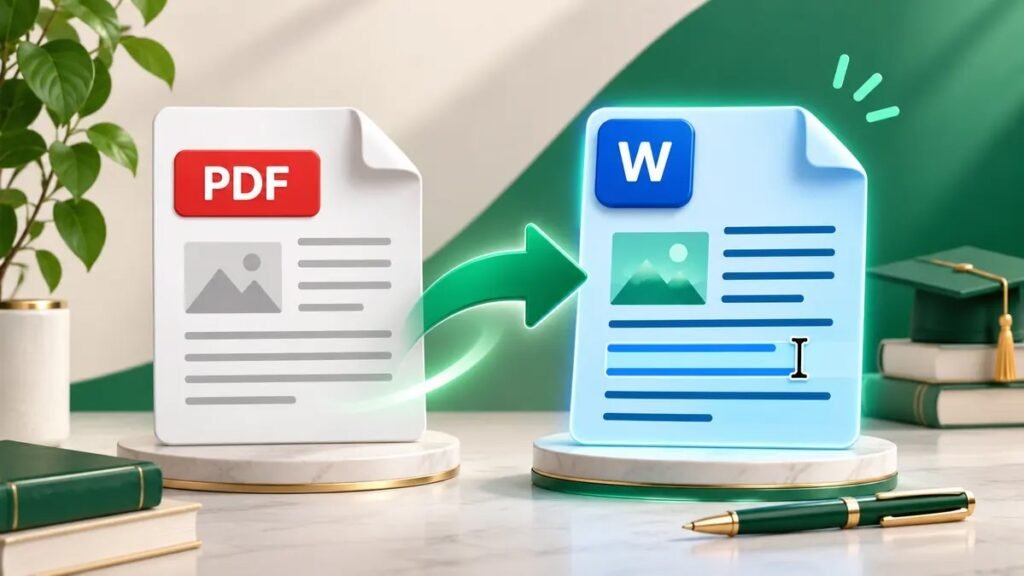
Quick answer. Choose a PDF-to-Word converter, add
the PDF, and download the resulting .docx file. Open it in
Word and compare the pages with the original. If the PDF is a scan, you
need a workflow with OCR to produce editable text.
Check whether your
PDF contains real text
Try selecting one word in the PDF. If you can highlight individual
words, it is likely text-based and a standard conversion may work. If
you can only select the page as an image, it may be a scan. OCR can
recover text from a scan, but you should compare the result with the
original line by line where accuracy matters.
For example, a digital two-page meeting agenda usually needs a layout
check. A photo of a signed form needs a closer review of names, numbers
and checkboxes because recognition and layout can both change.
Convert a PDF to a Word
file online
- Choose a converter that explicitly exports Word
(.docx). Check any size limits or account requirements before
uploading. - Upload a copy of the PDF and choose Convert.
- Download the Word file and open it in Word or a compatible
editor. - Check the headings, table columns, page breaks and footnotes against
the source. Edit and save the Word document after this check.
Use an online converter only for documents suitable for that service.
If the PDF contains personal or work information that needs to stay
local, try desktop Word or an approved offline converter.
Convert the PDF with desktop
Word
Open Word and choose File → Open. Select the PDF and
confirm the conversion prompt. After the file opens, choose Save
As and select Word Document. Microsoft says the conversion
works best with PDFs made mostly of text. Graphical pages and complex
layouts can come across differently. Microsoft’s
PDF conversion guidance
Turn a scanned PDF into
editable text
If the converted Word file contains a full-page picture, look for an
OCR option or use a separate OCR workflow. A clean, upright scan
improves the source the recognition tool has to work with. If you only
need the words and can rebuild the layout, start with ThinkQuarry’s
scanned PDF OCR guide.
Fix common
formatting problems after converting
- A table breaks across pages. Compare the row and
column counts with the source before changing the table layout. - Paragraphs are split into separate lines. Turn on
formatting marks and check for extra line or paragraph breaks before
cleaning the text. - Page numbers are wrong. Check Word’s header and
footer sections and refresh page numbering as needed. ThinkQuarry’s
guide to section breaks in Word - You need only a few source pages. Extract the
relevant pages first. ThinkQuarry’s
guide to splitting PDF pages
If you only need to add a note or highlight a passage, see how to edit a PDF
for free.
Frequently asked questions
Can I convert PDF to Word
for free?
Some converters offer free conversions subject to usage limits.
Desktop Word can also open and convert supported PDFs if you already
have access.
Will the Word file
look exactly like the PDF?
Layout can shift, especially in pages with tables, columns, custom
fonts or graphics. Compare the output before sharing it.
Why is the
converted document still a picture?
The source may be a scan. Run OCR to recover text and proofread the
result.
Does converting a PDF
change the original?
Saving the result as a separate .docx keeps the source PDF available
for comparison.
Can I convert just one page
to Word?
Extract that page as a separate PDF first, then convert the smaller
file.