 Ideas for a smarter digital life.
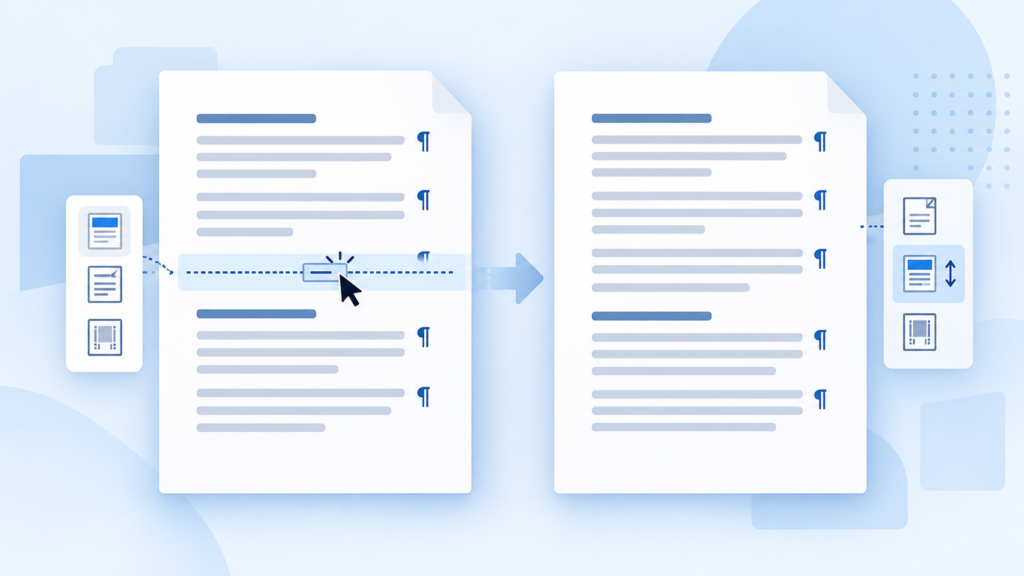
To remove a section break in Word, open the document in desktop Word, select Home > Show/Hide (¶), locate the section-break marker and delete it. Save a copy first: removing the boundary can change how the surrounding pages are formatted.
A section break carries more significance than a blank line. Before deleting it, decide whether you want to merge two sections or simply stop the next section from starting on another page.
Identify the break before removing it
| Visible marker or symptom | What it means | Appropriate starting point |
|---|---|---|
| Section Break (Next Page) | A section begins on another page | Decide whether the section boundary is still needed |
| Section Break (Continuous) | A section begins without a forced new page | Check which formatting requires the boundary |
| Page Break | A manual page boundary | Remove the page break if it is unwanted |
| No break marker near the gap | Another layout rule may be responsible | Check paragraph and pagination settings |
Turn on Home > Show/Hide so you can see the document’s structure. Deleting ordinary paragraph marks at random can join paragraphs without solving the page-layout problem.
How to delete a section break in Word
- Save a copy of the document.
- Turn on Home > Show/Hide (¶).
- Locate the marker labelled Section Break.
- Select the break itself, avoiding nearby text.
- Delete it.
- Inspect the pages on both sides of the former boundary.
Check orientation, margins, columns, headers, footers and page numbers. If the result is wrong, undo the deletion immediately.
Microsoft explains that deleting a break combines the sections and uses the formatting of the section that followed it. That is why removing a section break can unexpectedly turn a portrait page into landscape. See Microsoft’s section-break deletion guide.
Remove a section break without changing formatting: what is possible?
There is no universal promise that deleting a section boundary will preserve different layouts on both sides. Once the pages belong to one section, settings that depended on separate sections cannot remain independent in the same way.
Consider a report with portrait text followed by a landscape chart. If the chart still needs landscape orientation, the section boundary has a purpose. Removing it may solve a page gap while creating a bigger layout problem.
If the goal is only to avoid a forced new page, consider changing the relevant section’s start type to Continuous in desktop Word’s page setup controls. This retains the section boundary. It will not make every combination of layouts fit on one page; a change such as orientation may still require a page transition.
Microsoft’s section-layout documentation explains how section types support different layouts.
If your goal concerns headers or footers, review their linking controls before removing the section. A header relationship and a page boundary are different settings.
How to remove all section breaks in Word
Use this only when the document should no longer contain separate section layouts.
In desktop Word’s advanced Find and Replace dialog, choose Special > Section Break as the search item. In Windows desktop Word, the corresponding search code is ^b when wildcard searching is off. Leave the replacement empty.
Use Find Next and replace one break first. Inspect the result before choosing Replace All in your saved copy.
For example, a five-chapter report may have different first-page headers and page-number restarts. Removing all section breaks can alter those features throughout the document. Review the full file, not just the page currently on screen.
What if you cannot delete a section break?
First confirm that the document is editable. A protected file or read-only view may prevent changes. If necessary, ask the document owner for an editable copy.
Turn on formatting marks again and try selecting only the marker. Desktop Word’s Draft view can make document boundaries easier to inspect when Print Layout is crowded.
If Track Changes is active, review how the deletion is recorded. Do not accept all tracked changes merely to remove one break; unrelated edits may also be pending.
On a Mac, select the marker and use the available forward-delete action; some keyboards require Fn with Delete. In Word for the web, section-break editing is limited, so open the document in desktop Word when the required control is unavailable.
When a blank page remains
A blank page does not prove a section break is the cause. It can come from a page break, paragraph settings, an Odd Page or Even Page section start, or a final paragraph after a table.
Use the visible marks to identify the cause. Microsoft distinguishes manual page breaks from automatic pagination in its page-break guide. Its blank-page guidance covers additional cases.
After making a change, review Print Preview or export a temporary PDF. Look for shifted tables, unexpected numbering and changed headers.
Before sending the finished file, also remove personal information from the Word document if it contains private author details or review history. If you save the file online, our cloud storage guide explains how remote storage and sharing work.
Frequently asked questions (FAQ)
How do I remove a section break Next Page in Word?
Show formatting marks, select the labelled marker and delete it. If you still need separate formatting, consider changing the section start type instead.
Why did my formatting change after deleting a section break?
Word merged the sections. Section-level settings from the following section can affect the combined content.
Can I remove all section breaks at once?
Desktop Find and Replace can do this. Work in a copy and inspect one replacement before applying it throughout the document.
How do I remove a section break in Word on Mac?
Show formatting marks, select the marker and use forward delete. Keyboard combinations depend on your Mac keyboard.
Why does the blank page remain after I remove the break?
Another pagination setting or paragraph may be responsible. Inspect formatting marks and page-layout settings rather than deleting more content blindly.
Continue with Repeatable AI workflows
Use these related guides to choose your next step: