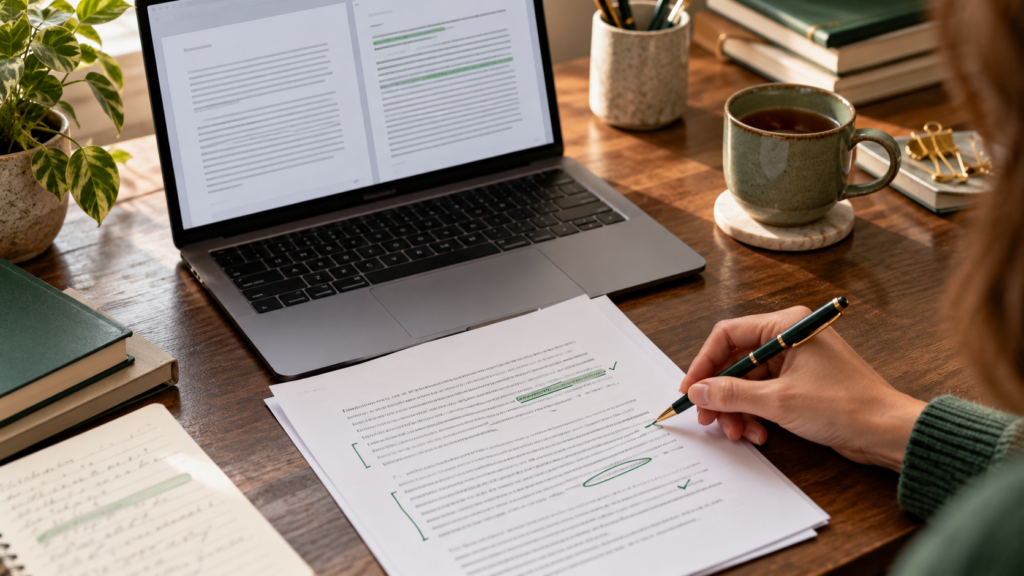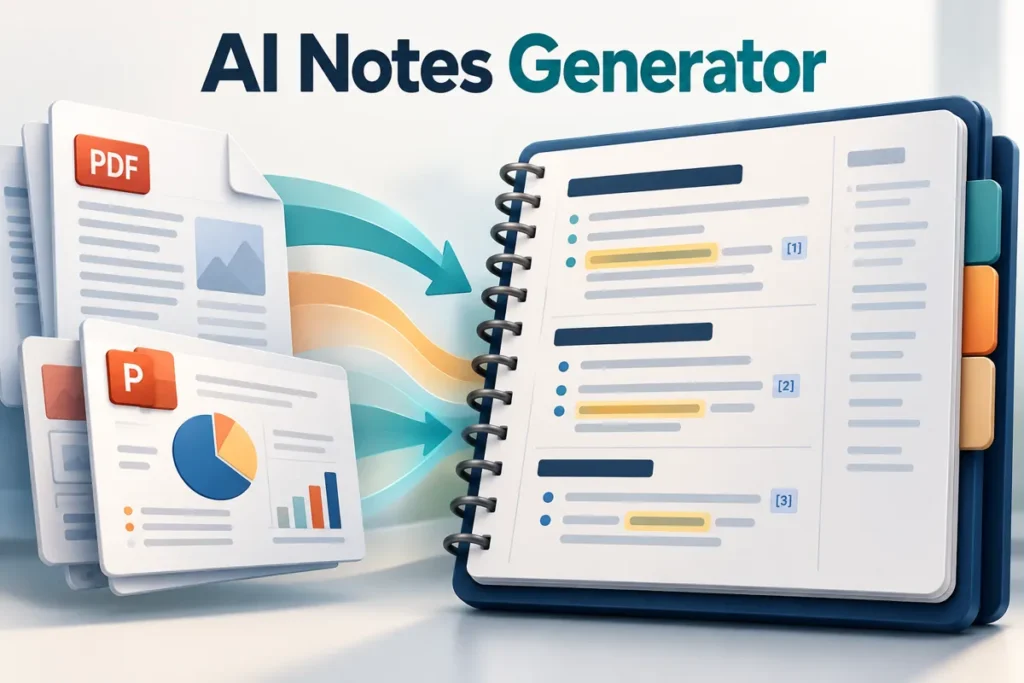
An AI notes generator can organize a document quickly, but organization and understanding are different things. Useful notes preserve the source, explain the important relationships and leave you with something to practice. They should not turn every paragraph into an equally important bullet point.
Practical example & checks
Turn a source paragraph into useful, checked notes
Source: Evaporation can happen at the surface of a liquid below its boiling point. Boiling occurs throughout the liquid when conditions permit bubbles to form. These are different processes even though both turn liquid into gas.
| Note type | Finished example |
|---|---|
| Main distinction | Evaporation: surface. Boiling: throughout the liquid. |
| Condition | Evaporation does not require reaching the boiling point. |
| Question to practise | Why can a puddle shrink without boiling? |
| Checked explanation | Liquid at its surface can evaporate below the boiling point. |
| Unanswered by source | Exact rate, humidity effect and a numerical boiling temperature. |
Revision step: Hide the table and explain the difference in two sentences. Reopen the source to check your wording. Do not accept a generated note saying evaporation happens only at 100°C; the source does not support that claim. This compact example shows why preserving conditions is more useful than producing many fluent bullets.
Original ThinkQuarry teaching material added 19 October 2026. Hypothetical examples are not product-test results.
Start with one PDF or slide section and a clear purpose: reference notes, revision notes or questions for a seminar. The purpose changes what should be kept.
Check the document before processing
Open the file and confirm the pages are readable. Look for scans, missing pages, tables and equations. A slide with only a diagram may need your own description or a supported image-reading workflow.
If you can select the text, inspect a short copied passage. If the extraction scrambles columns or symbols, fix it before asking for notes. Our Google Drive OCR guide explains a way to turn scanned material into editable text, with checking afterward.
Keep the source filename and version in your notes. “Lecture 4, final slides” is more useful later than “uploaded PDF.”
Choose a note structure
For reference, keep headings, definitions and source locations. For revision, add questions and common confusions. For a seminar, separate the author's claim, supporting evidence and questions you want to raise.
Try this prompt:
Create concise revision notes from this section. Use the original headings where useful. For each topic, include the key idea, one supporting detail, a source location and a question I should be able to answer. Preserve qualifications and mark information that is unclear or missing.
This keeps the output connected to the document rather than asking for a generic explanation of the topic.
Keep claims separate from your interpretation
Use labels such as “source says,” “my explanation” and “needs checking.” The distinction is particularly useful when reading research or argumentative writing.
Suppose a paper reports an association between two variables. Your notes should not turn that into a claim that one causes the other. If the author identifies limitations, preserve them beside the result rather than burying them in a final section.
For slide decks, check whether an apparently complete sentence was inferred from a heading. Ask the AI to identify inference as inference. If the spoken explanation is missing, record that gap.
Use source-linked tools where they help
RemNote's Reader documentation describes reading and annotating PDFs beside notes. Our NotebookLM tutorial shows a source-workspace approach. These are options to consider; this article does not rank their accuracy through product testing.
Check current plan restrictions, AI credits and export options in the product before adopting it. Keep a copy of your original material and test exporting a small note before moving a large collection.
Review high-risk details first
Inspect names, numbers, formulas, dates and causal claims. Then check the argument's structure: does the conclusion follow from the evidence, or did the summary omit a qualification?
Return to tables and diagrams directly. A table can contain categories that a text summary merges incorrectly. An equation can lose a minus sign without looking obviously wrong.
You do not have to accept the generated wording. Rewrite the confusing part in your own words and add a concrete example. That makes the note fit your understanding rather than preserving an elegant sentence you cannot explain.
Turn notes into actions
Finish each section with a small task: explain a definition, label a diagram, solve a problem or compare two ideas. If the notes only accumulate, they become another reading pile.
Keep one final note version and update it when you correct an error. Link it to the source so the next revision session begins with reliable material.
Frequently asked questions
Can an AI notes generator read handwritten notes?
Some workflows support images or handwriting recognition. Check the extracted text carefully before relying on the notes.
Should I keep every generated bullet point?
No. Keep the points that support your purpose and learning objective, with enough context to remain accurate.
What should I do with equations?
Compare symbols, signs and units with the original. Preserve an image or page reference when extraction is unreliable.
Can I use the notes as citations?
Cite the original source, not an AI summary as evidence for the source's claims.
How do I keep the notes useful?
Make them editable, source-linked and connected to practice tasks rather than treating them as finished after generation.